Today I learned
1. 코드카타
- 시저 암호 만들기
ex) AB를 1만큼 밀면 BC, 3만큼 밀면 DE
※s는 문자열이기 떄문에 바로 수정이 안됨 -> 리스트로 바꿔줌
ex) solution('a, B, z',1) 일 경우 s = ['a', 'B', 'z']의 리스트로 변환
※len(s)는 리스트의 문자열 길이, 공백까지 포함하여 s = ['a', 'B', 'z']의 len(s)= 5
※range(5) = [0,1,2,3,4] 이므로, 리스트 s의 글자 순서대로 순회
※ 리스트 s의 i번째 문자가 대문자일때(isupper() = True)
※ ord: 문자를 유니코드 숫자로
※ 26은 알파벳 문자 수
- s[i]가 A 일 경우, (ord('A') - ord('A') +n ) %26 +ord('A') = ord('A')+1 이 된다. 'B'
- s[i]가 Z이고 n이 3일 경우, (ord('Z') - ord('A') +3 ) %26 +ord('A') = (90-65+3) % 26 + 65 = 67, 'C'에 해당하는 숫자 도출
※ chr()로 숫자를 다시 문자로
※ 리스트 s의 i번째 문자가 대문자가 아닐 때 (isupper() = False, islower() = True)
※ 위와 같은 방식으로 적용
※ 완성된 리스트 s는 s = ['d', 'E', 'c'] 같이 떨어진 형태
※ join을 통해 떨어진 각 항을 모아줌
2. [라이브세션] 파이썬 베이직반 2회차
- 파이썬 문법 복습 및 시각화 복습
1. datetime 변환
|
import pandas as pd
df = pd.DataFrame({"날짜": ["2023-01-01", "2023/02/05", "2023.03.07","20241224"]})
df
|
 |
※ 날짜 데이터 양식이 중구난방쓰
|
df.info()
|
<class 'pandas.core.frame.DataFrame'> RangeIndex: 4 entries, 0 to 3 Data columns (total 1 columns): # Column Non-Null Count Dtype --- ------ -------------- ----- 0 날짜 4 non-null object dtypes: object(1) memory usage: 164.0+ bytes |
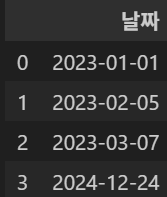
※ 날짜 데이터가 object 형식임을 확인 -> datetime 형태로 바꾸자
|
df["날짜"] = pd.to_datetime(df["날짜"], format="mixed", errors="coerce")
# format = 'mixed': 위의 날짜 포맷이 들쭉날쭉할 때 포맷이 뒤섞여있다고 알려주는거임.
# errors="coerce": 변환 불가능한 값은 NaN처리
df
|
 |
|
df.info()
|
<class 'pandas.core.frame.DataFrame'> RangeIndex: 4 entries, 0 to 3 Data columns (total 1 columns): # Column Non-Null Count Dtype --- ------ -------------- ----- 0 날짜 4 non-null datetime64[ns] dtypes: datetime64[ns](1) memory usage: 164.0 bytes |
|
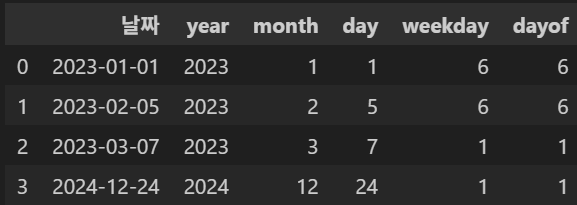
df['month'] = df['날짜'].dt.month
df['day'] = df['날짜'].dt.day
df['weekday'] = df['날짜'].dt.weekday #월화수목금토일을 숫자로 표현
df['dayof'] = df['날짜'].dt.day_of_week
df
|
 |
2. sort_values() : 특정 열을 기준으로 정렬
- ascending = True: 오름차순(기본, 스킵 가능)
- ascending = False: 내림차순
|
import pandas as pd
# 데이터프레임 생성
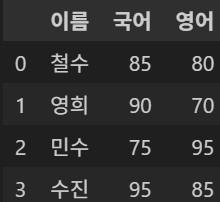
df = pd.DataFrame({
"이름": ["철수", "영희", "민수", "수진"],
"국어": [85, 90, 75, 95],
"영어": [80, 70, 95, 85]
})
df
|
 |
|
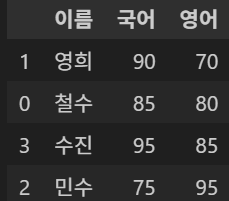
# 영어 기준으로 오름차순 배열
df = df.sort_values(by = '영어') df
|
 |
|
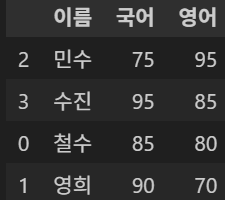
# 영어 기준으로 내림차순 배열
df = df.sort_values(by = '영어', ascending = False) df
|
 |
|
#어떤걸로 정렬할지 입력이 안되어서 아무것도 안뜰거임
df = df.sort_values()
|
--------------------------------------------------------------------------- TypeError Traceback (most recent call last) Cell In[18], line 1 ----> 1 df = df.sort_values() TypeError: DataFrame.sort_values() missing 1 required positional argument: 'by' |
3. sort_index(): index를 기준으로 정렬
|
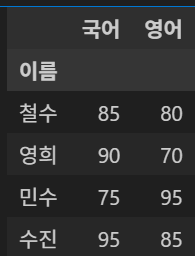
# 이름을 인덱스로
df = df.set_index('이름')
df
|
 |
|
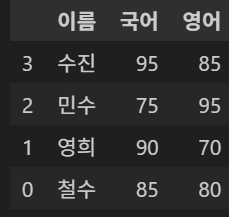
# 인덱스(이름) 기준 내림차순 정렬
df_sorted_desc = df.sort_index(ascending=False)
df_sorted_desc
|
 |
4. groupby
- groupby('컬럼')['값'].(집계함수)
- groupby()는 데이터프레임을 특정 기준으로 그룹화하여 집계 및 변환하는 기능을 제공함
- 집계함수: mean, median, sum, count, min, max
|
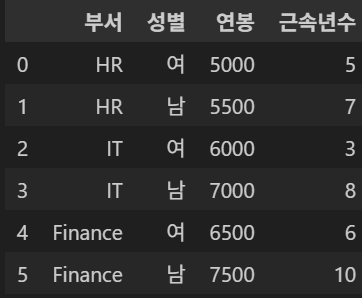
# 샘플 데이터 생성
df = pd.DataFrame({
"부서": ["HR", "HR", "IT", "IT", "Finance", "Finance"],
"성별": ["여", "남", "여", "남", "여", "남"],
"연봉": [5000, 5500, 6000, 7000, 6500, 7500],
"근속년수": [5, 7, 3, 8, 6, 10]
})
|
 |
|
# 성별별 근속년수 합계
df.groupby("성별")["근속년수"].sum() # median, sum, min
|
성별 남 25 여 14 Name: 근속년수, dtype: int64 |
|
# 부서별 연봉 평균
df.groupby('부서')['연봉'].mean() |
부서 Finance 7000.0 HR 5250.0 IT 6500.0 Name: 연봉, dtype: float64 |
|
# 성별, 부서별 연봉 평균
df.groupby(['성별','부서'])['연봉'].mean() |
성별 부서 남 Finance 7500.0 HR 5500.0 IT 7000.0 여 Finance 6500.0 HR 5000.0 IT 6000.0 Name: 연봉, dtype: float64 |
|
# 성별, 부서별 연봉 평균, 합계, 최댓값
df.groupby(['성별','부서'])['연봉'].agg(['mean','sum','max'])
※ 여러 집계함수를 쓸때는 agg(['집계함수1','집계함수2']) |
 |
- 데이터 시각화
- 샘플 데이터 생성 및 전처리
|
import pandas as pd
import seaborn as sns
import matplotlib.pyplot as plt
import numpy as np
# 샘플 데이터 생성
np.random.seed(42)
df = pd.DataFrame({
'Metric_A': np.random.normal(0, 1, 100),
'Metric_B': np.random.normal(1, 1.5, 100),
'label': np.random.choice([0, 1], 100)
})
df
|
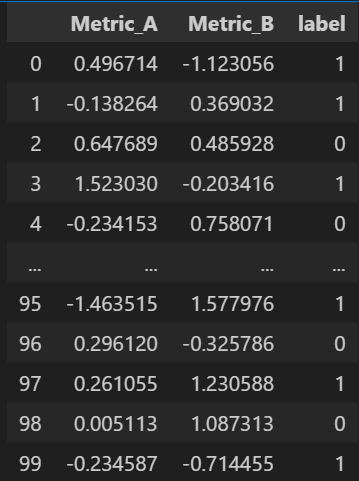 100 rows × 3 columns
|
|
df['label'].unique()
|
array([1, 0])
|
|
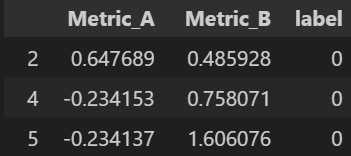
label0 = df[df['label'] == 0]
label0
|
 |
|
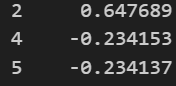
label0 = label0['Metric_A']
label0
|
 |
|
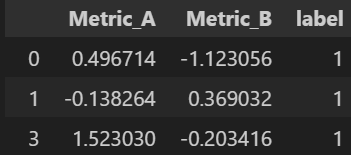
label1 = df[df['label'] == 1]
label1
|
 |
|
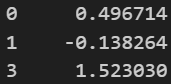
label1 = label1['Metric_A']
label1
|
 |
1) lineplot
- 라인플롯은 데이터의 값 변화를 선으로 연결해 표현하는 그래프
- 보통 시간 흐름이나 정렬된 데이터의 분포 경향을 비교할 때 사용
- 두 개 이상의 그룹간 추세나 패턴을 비교하기에 효과적.
|
#라인플롯용의 데이터 정렬
label0 = np.sort(df[df['label'] == 0]['Metric_A'].values)
label1 = np.sort(df[df['label'] == 1]['Metric_A'].values)
|
|
|
plt.figure(figsize=(10, 6))
plt.plot(label0, label='Label 0', linewidth=2)
plt.plot(label1, label='Label 1', linewidth=2)
plt.title('Line Plot of Metric_A by Label')
plt.xlabel('Sorted Index')
plt.ylabel('Metric_A Value')
plt.legend()
plt.grid(True)
plt.show()
|
 |
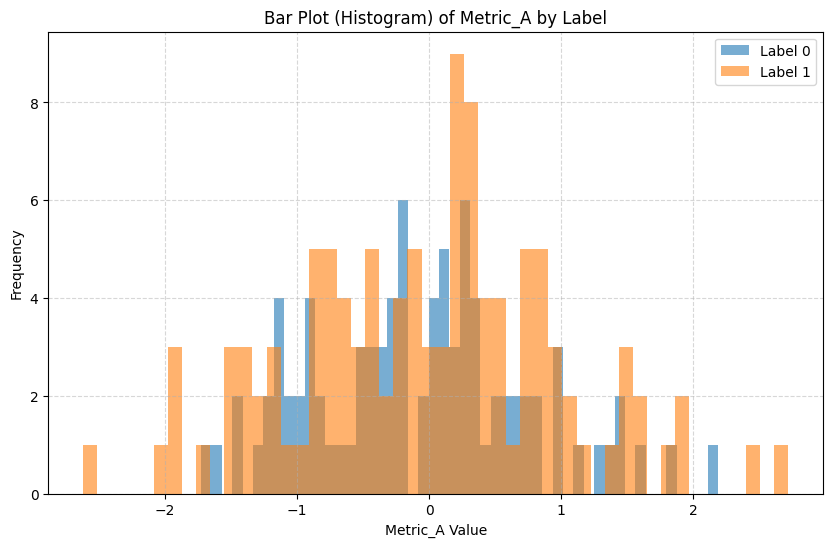
2) barplot
- 범주형 그룹 간의 수치 비교에 사용되는 대표적인 시각화
- 평균, 합계, 빈도 등 통계 요약값을 비교할 때 사용
|
plt.hist(label0)
plt.hist(label1)
|
 |
|
plt.figure(figsize=(10, 6))
bins = 50 # 막대 개수
plt.hist(df[df['label'] == 0]['Metric_A'], bins=bins, alpha=0.6, label='Label 0')
plt.hist(df[df['label'] == 1]['Metric_A'], bins=bins, alpha=0.6, label='Label 1')
#bins = bins
plt.title('Bar Plot (Histogram) of Metric_A by Label')
plt.xlabel('Metric_A Value')
plt.ylabel('Frequency')
plt.legend()
plt.grid(True, linestyle='--', alpha=0.5)
plt.show()
※ bins = bins 구절은 위에서 bins 인자에 bins 변수를 전달한다는 의미. |
 |
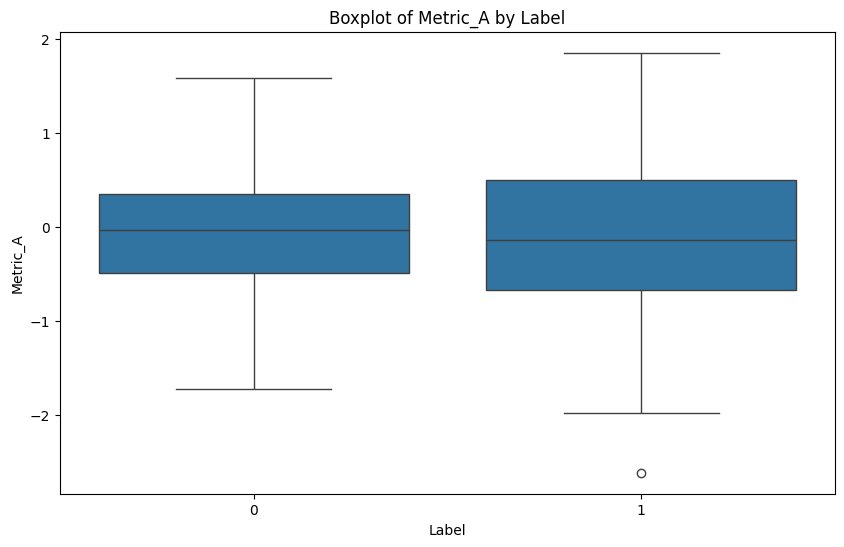
3) boxplot
- 그룹에 따른 Metric_A의 값 분포를 비교
- 데이터의 중앙값, 사분위수, 이상치를 시각화 하는데 사용
| 사분위수 | 이름 | 설명 |
| Q1 | 제1사분위수 | 하위 25% 지점의 값 |
| Q2 | 제2사분위수 | 중앙값 |
| Q3 | 제3사분위수 | 상위 25% 지점의 값 |
| IQR | 사분위 범위 | Q3 - Q1 (중간 50% 범위) |
|
import pandas as pd
import seaborn as sns
import matplotlib.pyplot as plt
import numpy as np
# 샘플 데이터 생성
np.random.seed(42)
df = pd.DataFrame({
'Metric_A': np.random.normal(0, 1, 100),
'Metric_B': np.random.normal(1, 1.5, 100),
'label': np.random.choice([0, 1], 100)
})
plt.figure(figsize=(10, 6))
sns.boxplot(x='label', y='Metric_A', data=df)
plt.title('Boxplot of Metric_A by Label')
plt.xlabel('Label')
plt.ylabel('Metric_A')
plt.show()
|
 |
|
import pandas as pd
import seaborn as sns
import matplotlib.pyplot as plt
import numpy as np
# 샘플 데이터 생성
np.random.seed(42)
df = pd.DataFrame({
'Metric_A': np.random.normal(0, 1, 100),
'Metric_B': np.random.normal(1, 1.5, 100),
'label': np.random.choice([0, 1], 100)
})
plt.figure(figsize=(10, 6))
sns.boxplot(x='label', y='Metric_B', data=df)
plt.title('Boxplot of Metric_B by Label')
plt.xlabel('Label')
plt.ylabel('Metric_A')
plt.show()
|
 |
- boxplot 보는 법 설명
- 박스: Q1과 Q3 사이의 범위
- 가로선: 중앙값(Q2)
- 수염: Q1 - 1.5IQR, Q3 + 1.5IQR
- 수염 범위를 벗어난 점: 이상치
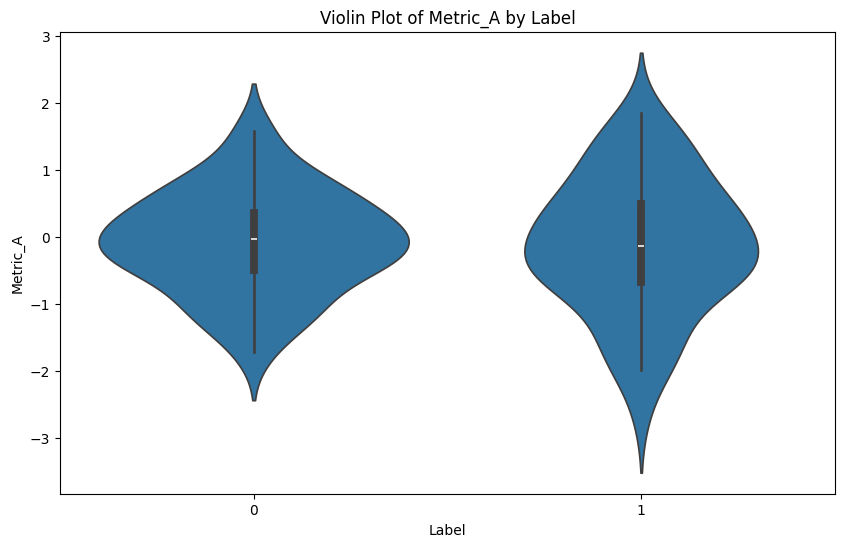
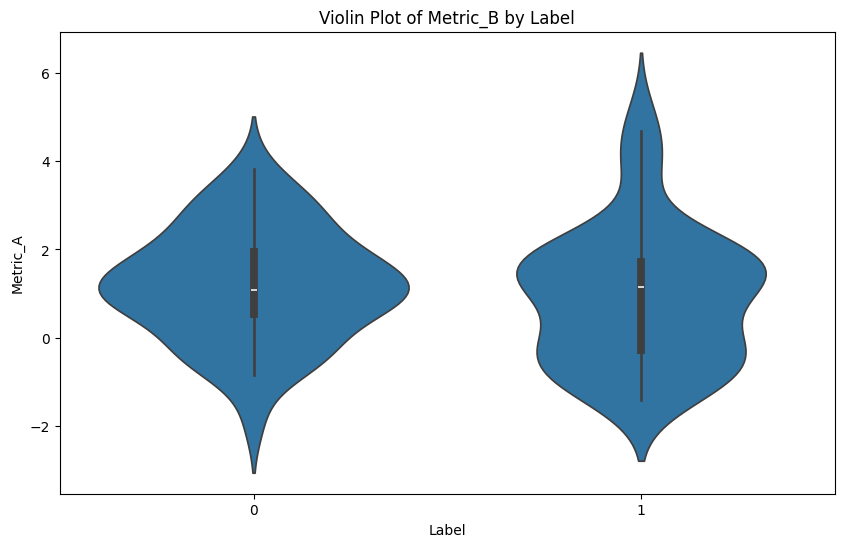
4) violinplot
- Boxplot + KDE(커널 밀도 추정)이 결함 된 형태
- 중앙의 흰 점은 중앙값, 두꺼운 막대는 IQR, 양쪽의 오목-볼록한 모양은 데이터 밀도 분포
- Boxplot 보다 데이터의 밀도 분포를 명확하게 시각화 가능
|
import pandas as pd
import seaborn as sns
import matplotlib.pyplot as plt
import numpy as np
# 샘플 데이터 생성
np.random.seed(42)
df = pd.DataFrame({
'Metric_A': np.random.normal(0, 1, 100),
'Metric_B': np.random.normal(1, 1.5, 100),
'label': np.random.choice([0, 1], 100)
})
plt.figure(figsize=(10, 6))
sns.violinplot(x='label', y='Metric_A', data=df)
plt.title('Violin Plot of Metric_A by Label')
plt.xlabel('Label')
plt.ylabel('Metric_A')
plt.show()
|
 |
|
import pandas as pd
import seaborn as sns
import matplotlib.pyplot as plt
import numpy as np
# 샘플 데이터 생성
np.random.seed(42)
df = pd.DataFrame({
'Metric_A': np.random.normal(0, 1, 100),
'Metric_B': np.random.normal(1, 1.5, 100),
'label': np.random.choice([0, 1], 100)
})
plt.figure(figsize=(10, 6))
sns.violinplot(x='label', y='Metric_B', data=df)
plt.title('Violin Plot of Metric_B by Label')
plt.xlabel('Label')
plt.ylabel('Metric_B')
plt.show()
|
 |
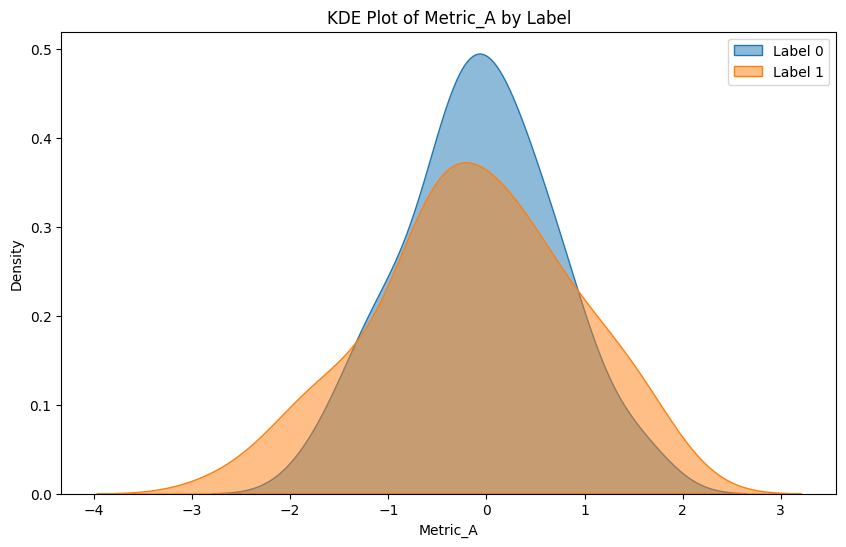
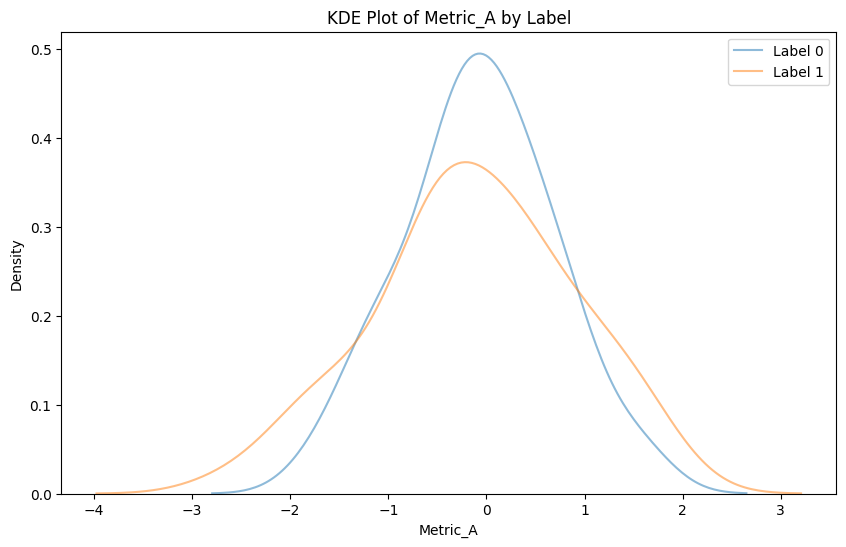
5) KDE plot
- 데이터의 분포를 부드럽게 추정한 확률 밀도 함수(PDF)를 시각화
- 히스토그램보다 부드럽고 직관적인 분포
- 두개 이상의 분포를 비교할 때 효과적임
|
import pandas as pd
import seaborn as sns
import matplotlib.pyplot as plt
import numpy as np
# 샘플 데이터 생성
np.random.seed(42)
df = pd.DataFrame({
'Metric_A': np.random.normal(0, 1, 100),
'Metric_B': np.random.normal(1, 1.5, 100),
'label': np.random.choice([0, 1], 100)
})
plt.figure(figsize=(10, 6))
sns.kdeplot(df[df['label'] == 0]['Metric_A'], label='Label 0', fill=True, alpha=0.5)
sns.kdeplot(df[df['label'] == 1]['Metric_A'], label='Label 1', fill=True, alpha=0.5)
plt.title('KDE Plot of Metric_A by Label')
plt.xlabel('Metric_A')
plt.ylabel('Density')
plt.legend()
plt.show()
|
  |
6. 저번 시간 데이터셋 활용
3. 기초 통계 강의
4-1. 단순선형회귀
- Y = β0 + β1X
- β1은 기울기, β0는 절편
|
import numpy as np
import pandas as pd
import matplotlib.pyplot as plt
from sklearn.linear_model import LinearRegression
from sklearn.model_selection import train_test_split
from sklearn.metrics import mean_squared_error, r2_score
# 예시 데이터 생성
np.random.seed(0)
X = 2 * np.random.rand(100, 1)
y = 4 + 3 * X + np.random.randn(100, 1)
# 데이터 분할
X_train, X_test, y_train, y_test = train_test_split(
X, y, test_size=0.2, random_state=42
)
# 단순선형회귀 모델 생성 및 훈련
model = LinearRegression()
model.fit(X_train, y_train)
# 예측
y_pred = model.predict(X_test)
# 회귀 계수 및 절편 출력
print("회귀 계수:", model.coef_)
print("절편:", model.intercept_)
# 모델 평가
mse = mean_squared_error(y_test, y_pred)
r2 = r2_score(y_test, y_pred)
print("평균 제곱 오차(MSE):", mse)
print("결정 계수(R2):", r2)
# 시각화
plt.scatter(X, y, color='blue', label='Actual Data')
plt.plot(X_test, y_pred, color='red', linewidth=2, label='Regression Line')
plt.title('Linear Regression')
plt.xlabel('X : cost')
plt.ylabel('Y : sales')
plt.legend()
plt.show()
|
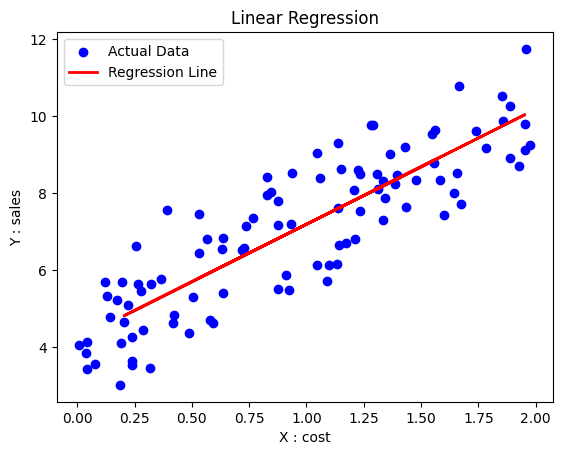 |
- 하나의 독립 변수 X와 하나의 종속 변수 Y 간의 관계를 직선으로 모델링
- 독립 변수의 변화에 따라 종속 변수의 변화를 설명하고 예측
- 데이터가 직선형 경향을 따를 때 사용하며, 그렇지 않을 경우 부적합임
4-2. 다중선형회귀
- Y = β0 + β1X1 + β2X2 + ... + βnXn

|
# 예시 데이터 생성
data = {'TV': np.random.rand(100) * 100,
'Radio': np.random.rand(100) * 50,
'Newspaper': np.random.rand(100) * 30,
'Sales': np.random.rand(100) * 100}
df = pd.DataFrame(data)
# 독립 변수(X)와 종속 변수(Y) 설정
X = df[['TV', 'Radio', 'Newspaper']]
y = df['Sales']
# 데이터 분할
X_train, X_test, y_train, y_test = train_test_split(X, y, test_size=0.2, random_state=42)
# 다중선형회귀 모델 생성 및 훈련
model = LinearRegression()
model.fit(X_train, y_train)
# 예측
y_pred = model.predict(X_test)
# 회귀 계수 및 절편 출력
print("회귀 계수:", model.coef_)
print("절편:", model.intercept_)
# 모델 평가
mse = mean_squared_error(y_test, y_pred)
r2 = r2_score(y_test, y_pred)
print("평균 제곱 오차(MSE):", mse)
print("결정 계수(R2):", r2)
|
회귀 계수: [-0.20728908 0.19925148 0.4517608 ] 절편: 45.63895079976374 평균 제곱 오차(MSE): 1296.0256963232357 결정 계수(R2): -0.03276268338895183 |
- 두개 이상의 독립 변수와 하나의 종속 변수간의 관게를 모델링
- 여러 독립 변수의 변화를 고려하여 종속 변수를 설명하고 예측
- 종속변수에 영향을 미치는 여러 독립변수가 있을 때 사용
- 여러 변수의 영향을 동시에 분석할 수 있으나, 다중공선성 문제가 발생할 수 있음.
- 다중공선성: 회귀분석에서 독립변수들 간 높은 상관관계가 있는 경우, 각 변수의 개별적인 효과를 분리해 내기가 어려움
4-3. 범주형 변수
- 수치가 아닌 문자로 이루어져 있는 변수
|
# 예시 데이터 생성
data = {'Gender': ['Male', 'Female', 'Female', 'Male', 'Male'],
'Experience': [5, 7, 10, 3, 8],
'Salary': [50, 60, 65, 40, 55]}
df = pd.DataFrame(data)
# 범주형 변수 더미 변수로 변환
df = pd.get_dummies(df, drop_first=True)
# 독립 변수(X)와 종속 변수(Y) 설정
X = df[['Experience', 'Gender_Male']]
y = df['Salary']
# 단순선형회귀 모델 생성 및 훈련
model = LinearRegression()
model.fit(X, y)
# 예측
y_pred = model.predict(X)
# 회귀 계수 및 절편 출력
print("회귀 계수:", model.coef_)
print("절편:", model.intercept_)
# 모델 평가
mse = mean_squared_error(y, y_pred)
r2 = r2_score(y, y_pred)
print("평균 제곱 오차(MSE):", mse)
print("결정 계수(R2):", r2)
|
회귀 계수: [ 2.57281553 -6.01941748] 절편: 40.63106796116506 평균 제곱 오차(MSE): 3.1067961165048588 결정 계수(R2): 0.9580162686958803 |
- 예시)성별, 지역, 옷의 사이즈
- 범주형 변수를 더미 변수로 변환한 후 회귀 분석을 수행해야 함.
4-4. 다항회귀 & 스플라인 회귀
- 다항회귀
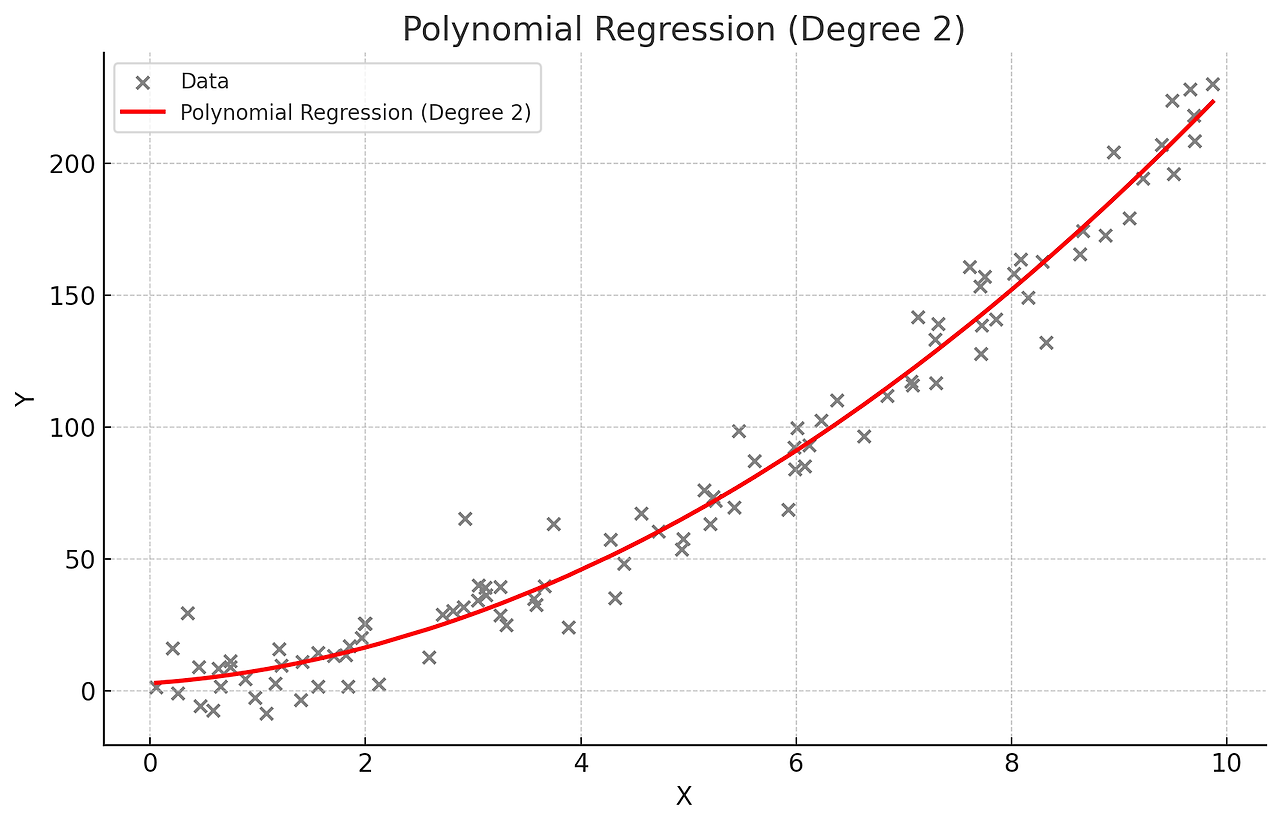 |
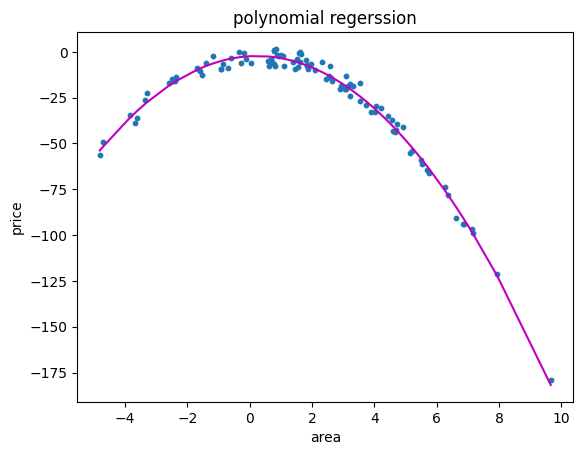
- 독립 변수와 종속 변수 간 관계가 선형이 아닐 경우 사용. - 독립 변수의 다항식을 사용하여 종속 변수를 예측. - 데이터가 곡선형 경향을 따를 때 사용 - 비선형 관계를 모델링 - 고차 다항식의 경우 과적합 위험이 있음. |
파이썬 예시)
|
from sklearn.preprocessing import PolynomialFeatures
# 예시 데이터 생성
np.random.seed(0)
X = 2 - 3 * np.random.normal(0, 1, 100)
y = X - 2 * (X ** 2) + np.random.normal(-3, 3, 100)
X = X[:, np.newaxis]
# 다항 회귀 (2차)
polynomial_features = PolynomialFeatures(degree=2)
X_poly = polynomial_features.fit_transform(X)
model = LinearRegression()
model.fit(X_poly, y)
y_poly_pred = model.predict(X_poly)
# 모델 평가
mse = mean_squared_error(y, y_poly_pred)
r2 = r2_score(y, y_poly_pred)
print("평균 제곱 오차(MSE):", mse)
print("결정 계수(R2):", r2)
# 시각화
plt.scatter(X, y, s=10)
# 정렬된 X 값에 따른 y 값 예측
sorted_zip = sorted(zip(X, y_poly_pred))
X, y_poly_pred = zip(*sorted_zip)
plt.plot(X, y_poly_pred, color='m')
plt.title('polynomial regerssion')
plt.xlabel('area')
plt.ylabel('price')
plt.show()
|
 |
- 스플라인 회귀
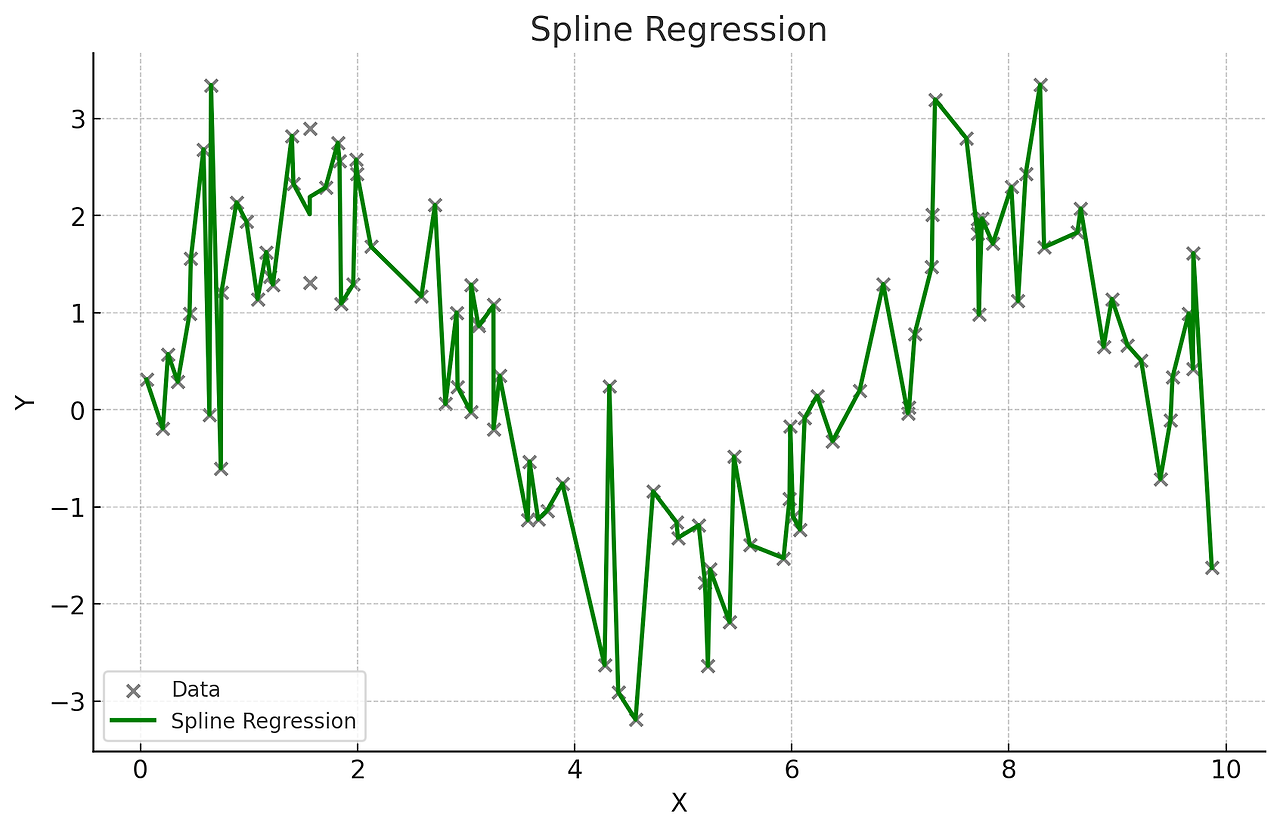 |
- 독립 변수의 구간별로 다른 회귀식을 적용 - 구간마다 다른 다항식을 사용하여 전체적으로 매끄러운 곡선 형태 - 데이터가 국부적으로 다른 패턴을 보일 때 사용 - 복잡한 비선형 관계를 유연하게 모델링 |
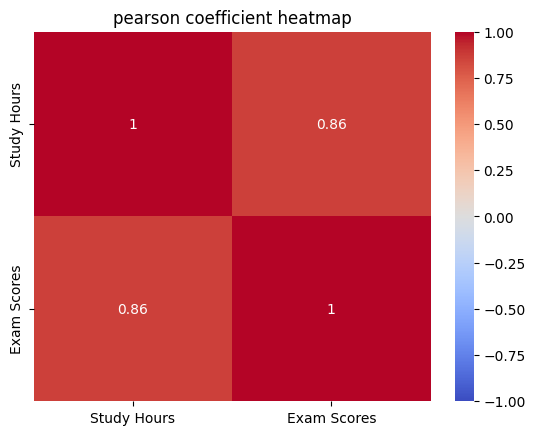
5-1. 피어슨 상관계수
- 두 연속형 변수 간의 선형 관계를 측정하는 지표
- -1 ~ 1 사이의 값을 가짐
- 1은 완전한 양의 선형 관계를 의미
- -1은 완전한 음의 상관관계
- 0은 선형 관계가 없음
- 비선형 관에서는 사용이 불가능함.
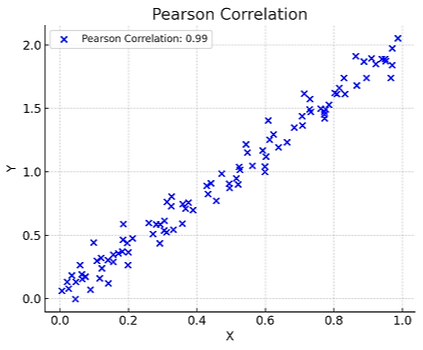 |
(그래프 설명) - X와 Y의 선형 상관관계를 보여줌 - 점들이 직선으로 퍼져 있고, 0.99의 상관계수로 매우 강한 양의 선형 관계를 나타냄. |
-파이썬 예시
|
import numpy as np
import pandas as pd
import matplotlib.pyplot as plt
import seaborn as sns
from scipy.stats import pearsonr
# 예시 데이터 생성
np.random.seed(0)
study_hours = np.random.rand(100) * 10
exam_scores = 3 * study_hours + np.random.randn(100) * 5
# 데이터프레임 생성
df = pd.DataFrame({'Study Hours': study_hours, 'Exam Scores': exam_scores})
# 피어슨 상관계수 계산
pearson_corr, _ = pearsonr(df['Study Hours'], df['Exam Scores'])
print(f"피어슨 상관계수: {pearson_corr}")
# 상관관계 히트맵 시각화
sns.heatmap(df.corr(), annot=True, cmap='coolwarm', vmin=-1, vmax=1)
plt.title('pearson coefficient heatmap')
plt.show()
|
 |
5-2. 비모수 상관계수
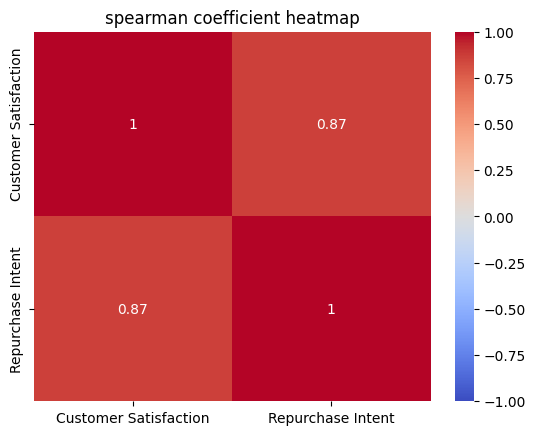
- 데이터가 정규분포를 따르지 않거나, 변수들이 순서형 데이터일 때 사용하는 상관계수
- 데이터의 분포에 대한 가정 없이 두 변수 간의 상관관계를 측정할 때 사용
- 데이터의 분포에 대한 가정을 못할 때, 순서형 데이터에도 사용하고 싶을 때
ex) 스피어만 상관계수, 켄달의 타우 상관계수
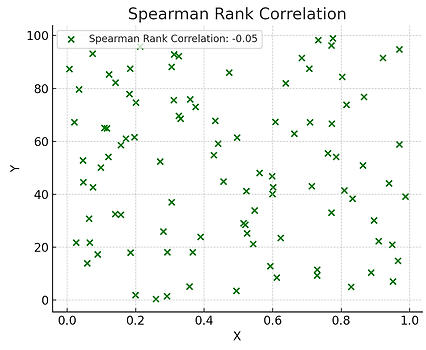 |
(그래프 설명) - 스피어만 상관계수 그림 - X와 Y의 순위 간의 일관성을 측정 - 스피어만 상관계수는 두 변수의 순위 간 상관관계를 측정함 - -1 ~ 1 사이의 값으로 해석 - 켄달의 타우 상관계수 보다 데이터 내 편차와 에러에 민 |
 |
(그래프 설명) - 켄달의 타우 상관계수 - X와 Y의 비선형 관계를 보여줌 - 켄달의 타우 상관계수는 두 변수 간의 순위 일관성을 측정하여 비선형 관계를 탐지 - 순위 간의 쌍 및 불일치 쌍의 비율을 바탕으로 계 |
- 파이썬 실습
|
from scipy.stats import spearmanr, kendalltau
# 예시 데이터 생성
np.random.seed(0)
customer_satisfaction = np.random.rand(100)
repurchase_intent = 3 * customer_satisfaction + np.random.randn(100) * 0.5
# 데이터프레임 생성
df = pd.DataFrame({'Customer Satisfaction': customer_satisfaction, 'Repurchase Intent': repurchase_intent})
# 스피어만 상관계수 계산
spearman_corr, _ = spearmanr(df['Customer Satisfaction'], df['Repurchase Intent'])
print(f"스피어만 상관계수: {spearman_corr}")
# 켄달의 타우 상관계수 계산
kendall_corr, _ = kendalltau(df['Customer Satisfaction'], df['Repurchase Intent'])
print(f"켄달의 타우 상관계수: {kendall_corr}")
# 상관관계 히트맵 시각화
sns.heatmap(df.corr(method='spearman'), annot=True, cmap='coolwarm', vmin=-1, vmax=1)
plt.title('spearman coefficient heatmap')
plt.show()
|
 |
5-3. 상호정보 상관계수
- 두 변수 간의 상호 정보를 측정
- 변수 간의 정보 의존성을 바탕으로 비선형 관계를 탐지
- 서로의 정보에 대한 불확실성을 줄이는 정도의 바탕으로 계산
- 범주형 데이터에 대해서도 적용 가능
- 두 변수가 범주형 변수일 때, 비선형적이고 복잡한 관계를 탐지하고자 할 때 사용.
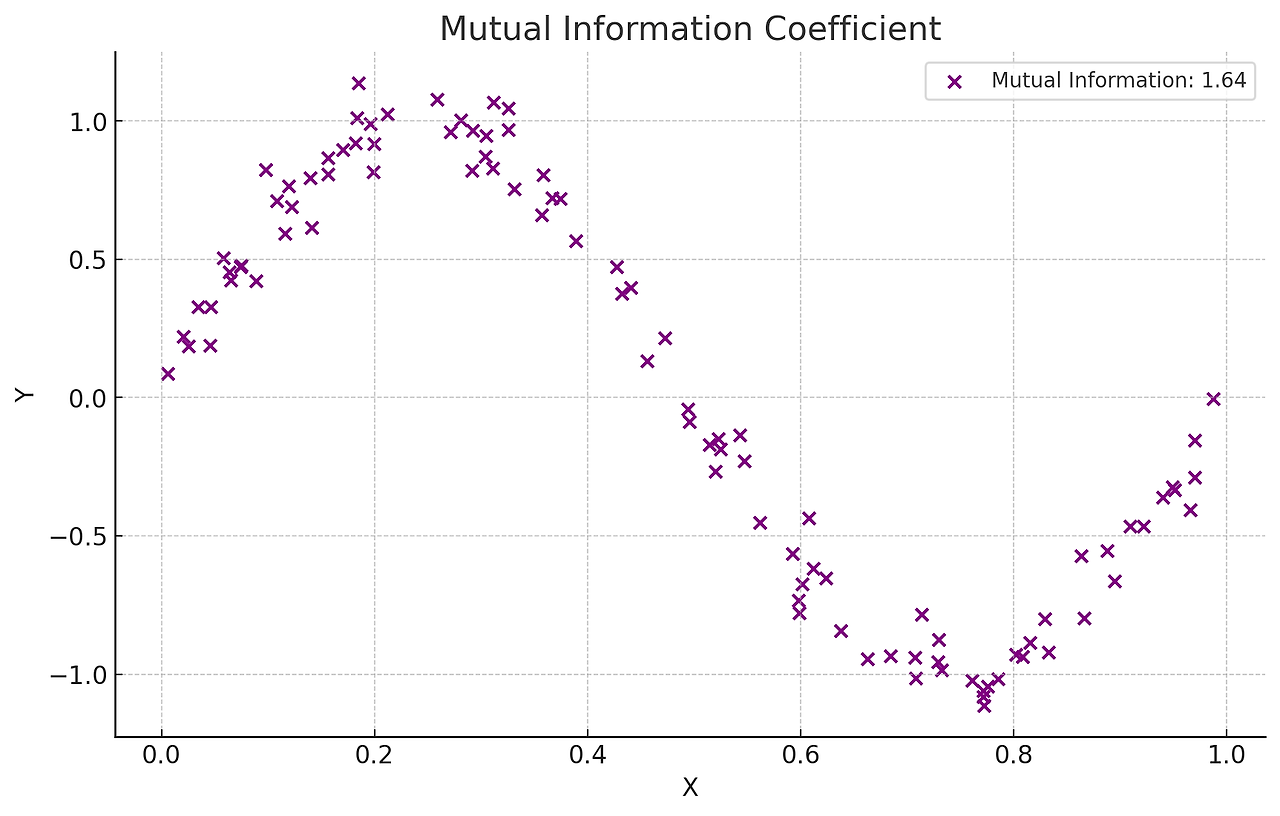 |
(그래프 설명) - 보라색 점들은 X와 Y 간의 비선형 관계를 나타냄 - 상호 정보 값인 0.90 으로 표시되어 있으며, 두 변수 간 강한 비선형 의존성을 의미함 |
- 파이썬 실습
|
import numpy as np
from sklearn.metrics import mutual_info_score
# 범주형 예제 데이터
X = np.array(['cat', 'dog', 'cat', 'cat', 'dog', 'dog', 'cat', 'dog', 'dog', 'cat'])
Y = np.array(['high', 'low', 'high', 'high', 'low', 'low', 'high', 'low', 'low', 'high'])
# 상호 정보량 계산
mi = mutual_info_score(X, Y)
print(f"Mutual Information (categorical): {mi}")
|
Mutual Information (categorical): 0.6931471805599456 |
6-1. 재현 가능성
- 동일 연구, 실험을 반복 했을 때 일관된 결과가 나오는지 여부 -> 신뢰성을 높이는 요소
- 결과가 재현되지 않는다면 가설의 신뢰도가 떨어짐
6-2. p-해킹
- 데이터 분석을 반복하여 p-값을 인위적으로 낮추는 행위
- 분석 결과의 신뢰성을 저하시킴
6-3. 선택적 보고
- 유의미한 결과만을 보고, 그렇지 않은 것은 보고 안함
- 데이터 분석의 결과를 왜곡, 신뢰성을 저하시킴
6-4. 자료 수집 중단 시점 결정
- 데이터 수집 시작 전 언제 수집을 중단할지 명확하게 결정하지 않으면 오히려 결과의 신뢰성을 떨어뜨릴 수 있음.
6-5. 데이터 탐색과 검증의 분리
- 데이터 탐색을 통해 가설 설정, 검증을 위해 별도의 데이터셋을사용함
- 데이터 과적합을 방지하고, 결과의 신뢰성을 높임
- 데이터를 탐색용(training)과 검증용(test)로 분리하여 사용
6-6. 추가 참고 자료
'빅데이터 QAQC_3기 > 빅데이터 QAQC_3기 TIL' 카테고리의 다른 글
| TIL_251027 (0) | 2025.10.27 |
|---|---|
| TIL_251024 (0) | 2025.10.24 |
| TIL_251022 (0) | 2025.10.22 |
| TIL_251021 (0) | 2025.10.21 |
| TIL_251020 (0) | 2025.10.20 |