Today I learned
1. QAQC 문제풀이 가이드
1-1. 컬럼별 결측치 찾기
import numpy as np
import pandas as pd
df = pd.DataFrame({
'A': [1, None, 3, None, 5],
'B': [10, 20, 30, 40, 50],
'C': [np.nan, np.nan, 2.5, 3.1, None]
})
a = df.isnull().sum()
print(a)
A 2 B 0 C 3 dtype: int64
1-2. 특정 컬럼 제거 후 행 갯수 출력
import numpy as np
import pandas as pd
titanic = pd.DataFrame({
'Name': ['A', 'B', 'C', 'D', 'E'],
'Age': [25, None, 31, None, 40],
'Fare': [10.5, 20.0, 30.5, 40.0, 50.5]
})
titanic_dropped = titanic.dropna()
print(len(titanic_dropped))
3
# Age 칼럼에 None이 제거되므로, titanic_dropped의 길이는 3임
1-3. 특정 컬럼의 결측치 비율을 계산하기
import numpy as np
import pandas as pd
df = pd.DataFrame({
'Age': [22, None, 35, None],
'Cabin': [None, 'C85', None, None],
'Embarked': ['S', None, 'C', None]
})
missing_ratio = ((df['Age'].isnull().sum() / len(df['Age']))*100).round(1)
print(missing_ratio)
50.0
# 전체 Age 컬럼의 길이로 결측치의 합을 나눠 100으로 곱하고 소숫점 1의 자리까지 나타냄
2-1. 배송 소요 일수 구하기
import pandas as pd
orders_df = pd.DataFrame({
'order_id': ['ORD001', 'ORD002', 'ORD003'],
'order_date': ['2024-01-01', '2024-02-10', '2024-03-05'],
'delivery_date': ['2024-01-04', '2024-02-15', '2024-03-07']
})
orders_df['order_date'] = pd.to_datetime(orders_df['order_date'])
orders_df['delivery_date'] = pd.to_datetime(orders_df['delivery_date'])
orders_df['delivery_days'] = (orders_df['delivery_date'] - orders_df['order_date']).dt.days
print(orders_df['delivery_days'])
0 3
1 5
2 2
Name: delivery_days, dtype: int64
# 정답의 0,1,2는 행의 위치고, 3, 5, 2가 delivery date에서 order_date를 뺀 값이다.
# .dt.days : dt는 datetime 관련 속성으로 접근할 수 있게 해주며, days는 기간을 '일' 단위의 정수로 바꿔준다. 즉 며칠 차이인지 정수로 변환해서 넣어주는 코드임.
2-2. 결측치를 평균값으로 대체하기
import pandas as pd
df = pd.DataFrame({
'Name': ['A', 'B', 'C', 'D'],
'Age': [20, None, 30, None]
})
a = df['Age'].mean()
df['Age'] = df['Age'].fillna(a)
print(df['Age'])
0 20.0
1 25.0
2 30.0
3 25.0
Name: Age, dtype: float64
# 0, 1, 2, 3은 행의 위치, 우측의 20, 25, 30, 25는 Age 칼럼에서 None 값을 평균으로 대체한 값이다.
# 변수 a에 Age 칼럼의 평균을 넣어주었고, fillna를 통해 None 값을 평균으로 바꿔주었다.
2-3. 빠른 배송(3일 이내) 주문 갯수를 계산하기
import pandas as pd
orders_df = pd.DataFrame({
'order_id': ['ORD001', 'ORD002', 'ORD003', 'ORD004', 'ORD005', 'ORD006'],
'order_date': ['2024-01-15', '2024-02-20', '2024-03-10', '2024-04-01', '2024-05-05', '2024-06-01'],
'delivery_date': ['2024-01-18', '2024-02-25', '2024-03-15', '2024-04-05', '2024-05-10', '2024-06-06']
})
orders_df['order_date'] = pd.to_datetime(orders_df['order_date'])
orders_df['delivery_date'] = pd.to_datetime(orders_df['delivery_date'])
orders_df['delivery_days'] = (orders_df['delivery_date'] - orders_df['order_date']).dt.days
count_3 = (orders_df['delivery_days'] <= 3)
print(count_3.sum())
1
# order_date 칼럼과 delivery_date 칼럼을 datetime의 형태로 바궈주고, 새 delivery_days 칼럼을 만들어 delivery_date에서 order_date를 뺀 값을 넣어준다. 날짜를 계산하기 위해 .dt.days를 붙였다.
# 새 변수 count_3는 delivery_days 칼럼의 값이 3 이하인 경우만 True가 나오는 불리언 시리즈이며, 합계를 구하면 True를 1로, False를 0으로 간주하여 결과가 나온다.
2. (라이브세션) Python 라이브러리 세션 3회차
1) CSV 파일 다루기
What CSV? -> Comma Seperated Value, 쉼표로 구분한 데이터 형식
ex1) 기본적인 csv 파일 읽기
import csv
#기본적인 csv 파일 읽기
with open('csv_test.csv', 'r', encoding = 'utf-8') as file: #r: 리딩한다는 뜻, 인코딩 없은면 깨짐
csv_reader = csv.reader(file)
for row in csv_reader:
print(row)
#with 문으로 가지고 와서 pandas 상에서 첫 번째 줄을 header
# pandas 자체 모듈에서 csv : read_csv()
with open("csv_test.csv", 'r', encoding = 'utf-8') as file:
csv_reader = csv.DictReader(file)
for row in csv_reader:
print(row["\ufeff이름"], row["나이"], row["직업"])
ex2) 리스트 형태의 데이터 쓰기
data = [
['이름', '나이', '직업'],
['유서윤', '34', '서점MD'],
['남지후', '27', '출판편집자']
]
data
2) JSON 파일 다루기
ex) 읽기, 쓰기, 저장하기
import json
# JSON 파일 읽기
with open('json_test.json', 'r', encoding='utf-8') as file: # with문을 통해 읽어올거임
data = json.load(file) # 파일의 JSON을 파이썬 객체로 변환
print(data)
print(data['이름'])# 딕셔너리처럼 접근, R꼭 with 문으로만 열 수 있는건 아니다!
# JSON 문자열을 객체로 변환
json_string = '{"이름": "남지후", "나이": 27, "선호장르": ["인문", "소설"]}'
data2 = json.loads(json_string)
print(data2['이름'])
#JSON 파일 쓰기
import json
# 딕셔너리 데이터 준비 (도서 테마)
person_data = {
"이름": "문하린",
"나이": 29,
"직업": "번역가",
"취미": ["동네책방투어", "보드게임"],
"주소": {
"시": "부산",
"구": "해운대구"
},
"최근번역": {"제목": "바닷가의 서점", "언어": "영→한"}
}
# JSON 파일로 저장
with open('json_test.json', 'w', encoding='utf-8') as file:
json.dump(person_data, file, ensure_ascii=False, indent=2) #dump: 기존 데이터를 버리고 데이터를 바꿔줌
# 문자열로 변환
json_string = json.dumps(person_data, ensure_ascii=False, indent=2)
print(json_string)
# JSON 파일로 저장
with open('person.json', 'w', encoding='utf-8') as file:
json.dump(person_data, file, ensure_ascii=False, indent=2) #위계를 주기 위해 indent, ascii=알파벳, ascii=False : 알파벳이 아니다
# 문자열로 변환
json_string = json.dumps(person_data, ensure_ascii=False, indent=2)
print(json_string)
3) 텍스트 파일 처리
ex) 읽기, 쓰기
# 텍스트 파일 읽기 - 전체 내용
with open('Text_test.txt', 'r', encoding='utf-8') as file:
content = file.read()
print(content)
# 텍스트 파일 읽기 - 한 줄씩
with open('Text_test.txt', 'r', encoding='utf-8') as file:
for line_num, line in enumerate(file, 1): # 컴퓨터는 0번부터 시작하기 때문에 시작 넘버를 입력해줌
print(f"{line_num}: {line.strip()}")
# 텍스트 파일 쓰기
with open('output.txt', 'w', encoding='utf-8') as file:
file.write('공지: 오늘 18시에 마감 점검\n')
file.write('테이블 배치도는 3층 탕비실 보관\n')
# 여러 줄 한 번에 쓰기
lines = ['사인회 안내문 업데이트\n', '전자책 체험존 점검\n']
file.writelines(lines)
4) 정규표현식
문자들을 가지고 정규 표현식을 어떻게 해석하는가?
ex1) 패턴 정의, 찾기, 추출, 치환
import re
text = "연락처: 019-2468-1357, 이메일: booklover@readers.co.kr, 생년월일: 1988-03-12"
# 패턴 정의
phone_pattern = r'\d{3}-\d{4}-\d{4}'# 전화번호 패턴
email_pattern = r'[a-zA-Z0-9._%+-]+@[a-zA-Z0-9.-]+\.[a-zA-Z]{2,}'# 이메일 패턴
date_pattern = r'\d{4}-\d{2}-\d{2}'# 날짜 패턴
# 첫 번째 매치 찾기
phone = re.search(phone_pattern, text)
if phone:
print(f"전화번호: {phone.group()}")
# 모든 숫자 추출
numbers = re.findall(r'\d+', text)
print(f"모든 숫자: {numbers}")
# 문자열 치환
masked_text = re.sub(phone_pattern, '010-****-****', text)
print(f"마스킹된 텍스트: {masked_text}")
ex2) 사용 예시
import re
96
# 이메일 유효성 검사def is_valid_email(email):
def is_valid_email(email):
pattern = r'^[a-zA-Z0-9._%+-]+@[a-zA-Z0-9.-]+\.[a-zA-Z]{2,}$'
return bool(re.match(pattern, email))
# 전화번호 형식 통일def format_phone_number(phone):
def format_phone_number(phone):
numbers = re.sub(r'[^0-9]', '', phone)# 숫자만 추출
if len(numbers) == 11:
return f"{numbers[:3]}-{numbers[3:7]}-{numbers[7:]}"
return phone
# HTML 태그 제거def remove_html_tags(text):
def remove_html_tags(text):
return re.sub(r'<[^>]+>', '', text)
# 사용 예시
print(is_valid_email("paper.shop@example.com")) # True
print(format_phone_number("0198765432")) # 019-9876-5432
print(remove_html_tags("<div>사인회 공지</div>")) # 사인회 공지
ex3) with 문을 활용하자
# 권장: with 문 사용
with open('notice.txt', 'r', encoding='utf-8') as file:
content = file.read()
# 블록이 끝나면 자동으로 파일이 닫힘
# 비권장: 수동으로 파일 닫기
file = open('notice.txt', 'r', encoding='utf-8')
try:
content = file.read()
finally:
file.close()# 실수로 빠뜨리기 쉬움
# 기본적으로 with를 사용하면 블록이 끝난 후 자동으로 파일이 닫힘
ex4) 추가적인 테크놀로지아
# 두 개의 파일을 동시에 열기
with open('event_source.txt', 'r', encoding='utf-8') as infile, \
open('event_upper.txt', 'w', encoding='utf-8') as outfile:
#백슬러시를 쓰면 여러개를 더하는거
for line in infile:
processed_line = line.upper()# 대문자로 변환
outfile.write(processed_line)
# 파일 복사 예제def copy_file(source, destination):
with open(source, 'r', encoding='utf-8') as src, \
open(destination, 'w', encoding='utf-8') as dst:
dst.write(src.read())
3. (라이브세션) [데이터 전처리&시각화] 시각화 기초
1) 중복 데이터 처리
ex1) 거래 데이터(랜덤) 생성
import numpy as np
import pandas as pd
# 거래 데이터 생성 (의도적 중복 포함)
np.random.seed(123)
# 기본 거래 데이터
base_trades = pd.DataFrame({
'trade_id': range(1, 21),
'stock_symbol': np.random.choice(['AAPL', 'MSFT', 'GOOGL'], 20),
'trade_date': pd.date_range('2024-01-01', periods=20, freq='D'),
'quantity': np.random.randint(100, 1000, 20),
'price': np.round(np.random.uniform(100, 200, 20), 2)
})
# 중복 데이터 생성 (시스템 오류 시뮬레이션, 실무에선 이거 안넣어요~)
duplicate_trades = base_trades.iloc[[2, 5, 8, 15]].copy()# 일부 행 복사
duplicate_trades['trade_id'] = [101, 102, 103, 104]# ID만 변경# 완전 동일한 중복도 추가
exact_duplicate = base_trades.iloc[[10, 12]].copy()
# 모든 데이터 결합
trades_df = pd.concat([base_trades, duplicate_trades, exact_duplicate], ignore_index=True)
print("중복이 포함된 거래 데이터:")
print(f"전체 데이터 행 수: {len(trades_df)}")
trades_df
중복이 포함된 거래 데이터: 전체 데이터 행 수: 26
# 표는 생략
ex2) 중복 행 확인
# 중복 행 확인
trades_df.duplicated() # 내가 확인할 중복 데이터
# 해당 값 적용 시 중복 값이 True 형태로 산출됨
# 1행, 2행, 3행이 중복이라고 하면, 1행은 False값, 2 3행은 True로 나옴
항상 첫번째 중복 값은 True
ex3) 중복된 데이터가 있는 행을 보여조
trades_df[trades_df.duplicated()]
trades_df.duplicated(keep=False) # 전체에 대해서 중복값 확인
#keep = False이면 중복값이 True
trades_df[trades_df.duplicated(keep=False)] #실제 중복되는 행들이 어디에 있는지
ex4) 중복값 제거
trades_df.drop_duplicates()
# 결측치 제거할 때도 썼던 drop -> 중복된 행이 사라짐
ex5) 특정 컬럼 기준으로 중복 제거
trades_df.drop_duplicates(subset=['stock_symbol', 'trade_date'])
# 다른 컬럼은 무시하고, subset으로 지정해둔 stock_symbol열과 trades_date 열이 같으면 중복되는 항목을 날림
ex6) 중복 제거 전략
ex6-1) 최근 값만 남기기
latest_trades = trades_df.drop_duplicates(
subset=['stock_symbol', 'trade_date'],
keep='last'
)
latest_trades
trades_df[trades_df.duplicated(subset = ['stock_symbol', 'trade_date'], keep='last')]
ex6-2) 최대 값만 남기기
trades_df.sort_values('quantity', ascending=False).reset_index()
# ascending = True: 오름차순, False: 내림차순
# reset_index를 추가하여 정렬 및 필터링 후 다시 0부터 번호 매김, 기존 index는 남아있음
2) 시각화
- 데이터 시각화: 숫자와 텍스트로 이루어진 데이터를 차트, 그래프, 지도 등 시각적 요소로 표현하는 과정을 의미
- 탐색적 데이터 분석(EDA): 데이터 탐정 작업, 새로운 데이터를 받았을 때 모델링 전 데이터가 어떻게 생겼는지, 어던 특징이 있는지, 어떤 문제가 있는지 파악하는 과정
- EDA의 목표
a. 이 데이터가 무엇을 담고 있는가?
b. 어떤 관련성이 있는가?
c. 결측치, 이상치, 오류가 있는가?
d. 분석 방향성을 어떻게 잡아야 하는가?
- EDA에서 시각화의 역할
a. 데이터의 분포를 파악
b. 변수 간의 관계를 발견
c. 결측치 패턴을 확인
d. 이상치(outliner)를 탐지
e. 가설 생성과 검증을 지원
ex1) matplotlib
import matplotlib.pyplot as plt
# x축 데이터와 y축 데이터 준비
x = [1, 2, 3, 4, 5]
y = [10, 20, 25, 30, 35]
plt.plot(x,y) #x 축에는 x를, y 축에는 y 값들을 넣어러
plt.xlabel('온도') # X축 이름 설정
plt.ylabel('습도') # Y축 이름 설정
plt.title('즈에에모오옥') # 플롯 제목 설정
plt.plot(x,y, label = 'FT1')
plt.legend() #범레
plt.plot(x,y)

ex2) pyplot과 객체 지향 인터페이스
ex2-1) pyplot
# pyplot 인터페이스
import matplotlib.pyplot as plt
# 데이터 준비
x = [1, 2, 3, 4, 5]
y = [10, 20, 25, 30, 35]
# 플롯 생성 및 스타일 추가
plt.plot(x, y, label='샘플 데이터', color='blue', linestyle='--', marker='x') #객체지향하고 이부분이 차이남.
# 레이블, 제목, 범례 추가
plt.xlabel('X축 이름')
plt.ylabel('Y축 이름')
plt.title('pyplot 인터페이스 예시')
plt.legend()
# 플롯 표시
plt.show()
# 자동이라고 생각하면 됨.
ex2-2) 객체 지향 인터페이스
#객체 지향 인터페이스
import matplotlib.pyplot as plt
# 데이터 준비
x = [1, 2, 3, 4, 5]
y = [10, 20, 25, 30, 35]
# 캔버스와 축 생성
fig, ax = plt.subplots() # 캔버스와 축을 직접 입력하여 생성해야함
# 축(ax) 객체에 직접 플롯 추가
ax.plot(x, y, label='샘플 데이터', color='blue', linestyle='--', marker='x') #pyplot은 plt로 시작, 객체지향은 ax로 시작
# 축, 제목, 범례 추가
ax.set_xlabel('X축 이름')
ax.set_ylabel('Y축 이름')
ax.set_title('객체 지향 인터페이스 예시')
ax.legend()
# 플롯 표시
plt.show()
# 수동으로 설정해 주어야 하는 내용들이 많음. but 세부적으로 조절할 수 있음
ex3) bar형 플롯
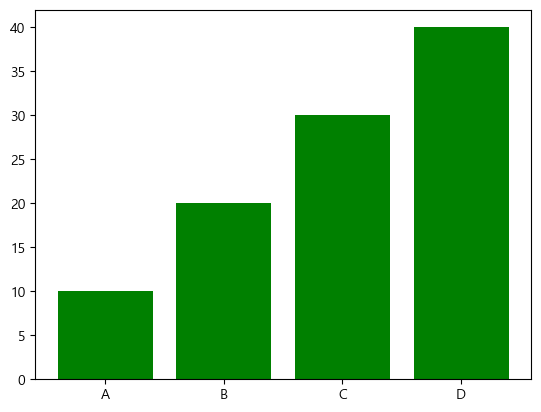
ex3-1) pyplot
categories = ['A','B','C','D']
values = [10, 20, 30, 40]
plt.bar(categories, values, color = 'green')
plt.show()
ex3-2) 객체 지향
categories = ['A','B','C','D']
values = [10, 20, 30, 40]
fig, ax = plt.subplots()
ax.bar(categories, values)
plt.show()
ex4) scatter plot: 두 변수 간의 상관관게를 탐색할 때 사용

ex4-1) pyplot
x = [5, 7, 8, 7, 2, 17, 2, 9, 4, 11, 12, 9, 6]
y = [99, 86, 87, 88, 100, 86, 103, 87, 94, 78, 77, 85, 86]
plt.scatter(x, y)
plt.show()
ex4-2) 객체 지향
fig, ax = plt.subplots()
x = [5, 7, 8, 7, 2, 17, 2, 9, 4, 11, 12, 9, 6]
y = [99, 86, 87, 88, 100, 86, 103, 87, 94, 78, 77, 85, 86]
ax.scatter(x, y)
plt.show()
ex5) 히스토그램
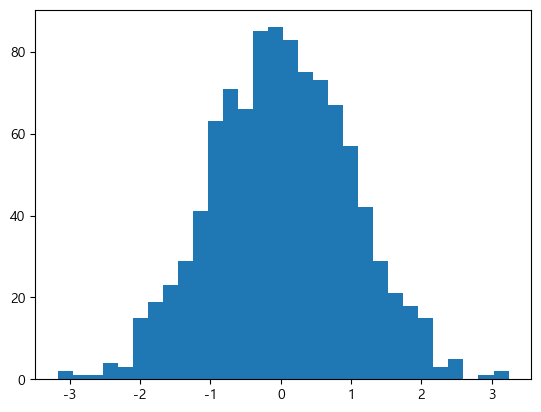
import numpy as np
import matplotlib as mpl
mpl.rcParams['axes.unicode_minus'] = False #마이너스 깨짐 방지, 이건 안외워도 됨ㅋㅋ
data = np.random.randn(1000)
plt.hist(data, bins=30)
plt.show()
# bins: 구간, bin값이 커지면 더 많은 구간을 히스토그램에 담을 수 있음
ex6) pie chart

sizes = [10, 20, 25, 30]
labels = ['A', 'B', 'C', 'D']
plt.pie(sizes , labels=labels, autopct='%1.2f%%') #1f면 소숫점 첫째
plt.show()
ex7) stack plot(누적형)
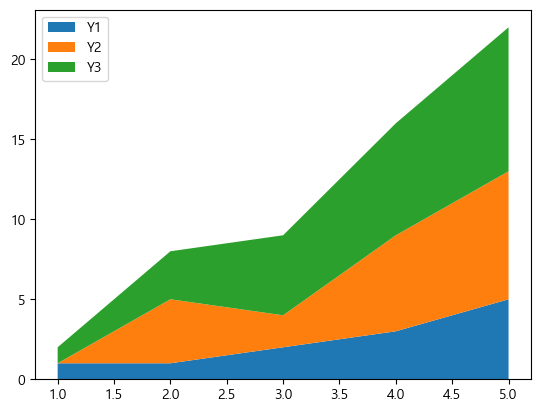
ex7-1) pyplot
x = [1, 2, 3, 4, 5]
y1 = [1, 1, 2, 3, 5]
y2 = [0, 4, 2, 6, 8]
y3 = [1, 3, 5, 7, 9]
plt.stackplot(x, y1, y2, y3, labels=['Y1', 'Y2', 'Y3'])
plt.legend(loc='upper left') # 이건 범례 위치임
plt.show()
ex7-2) 객체 지향
fig, ax = plt.subplots()
x = [1, 2, 3, 4, 5]
y1 = [1, 1, 2, 3, 5]
y2 = [0, 4, 2, 6, 8]
y3 = [1, 3, 5, 7, 9]
ax.stackplot(x, y1, y2, y3, labels=['Y1', 'Y2', 'Y3'])
ax.legend(loc='upper left')
plt.show()
ex8) box plot(중요중요)
data = np.random.rand(10, 4)
plt.boxplot(data)
plt.show()
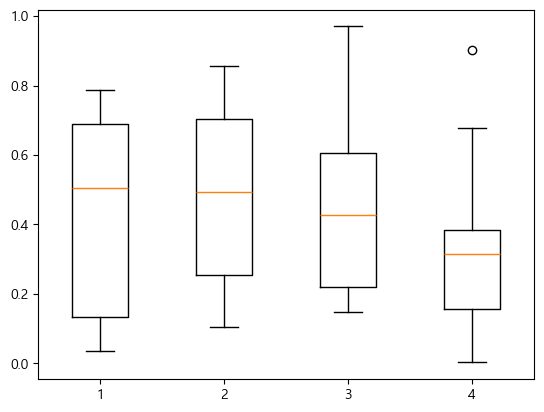
# 주황선: 중앙값
# box의 위 경계/아래 경계: describe()를 통해 나온 75%값/ 25% 값
# 선 위/아래: 상위/하위 경계 내측의 최대/최솟값
# o: 아웃라이어, 이상치
# box: IQR
ex9) violin plot: 박스플롯과 비슷하지만 데이터 분포 및 밀도를 확인 할 수 있음.
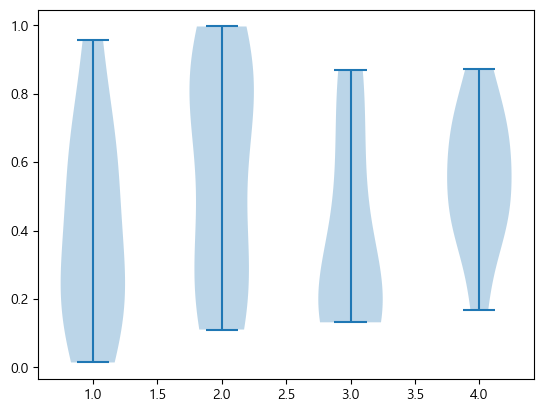
data = np.random.rand(10, 4)
plt.violinplot(data)
plt.show()
3) 그래프 커스터마이징
ex1) pyplot
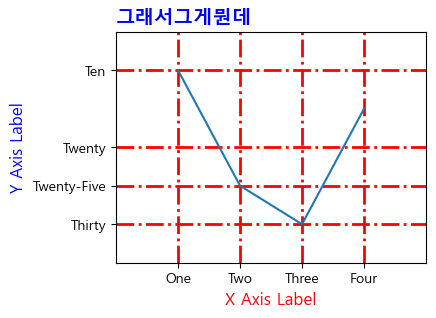
# 데이터 생성
x = [1, 2, 3, 4]
y = [10, 25, 30, 15]
# 그래프 사이즈 설정
plt.figure(figsize=(4, 3))
# 그래프 그리기
plt.plot(x, y)
# 제목 설정
plt.title("그래서그게뭔데", fontsize=14, fontweight='bold', color='blue', loc = 'left')
# X축 레이블 설정
plt.xlabel("X Axis Label", fontsize=12, color='red')
# Y축 레이블 설정
plt.ylabel("Y Axis Label", fontsize=12, color='blue')
# 축 범위 지정
plt.xlim(0, 5) # X축의 범위를 0부터 5까지 지정
plt.ylim(5, 35) # Y축의 범위를 5부터 35까지 지정
plt.gca().invert_yaxis()
# X축과 Y축 눈금 설정
plt.xticks([1, 2, 3, 4], ['One', 'Two', 'Three', 'Four'])
plt.yticks([10, 20, 25, 30], ['Ten', 'Twenty', 'Twenty-Five', 'Thirty'])
# 그리드 설정
plt.grid(True, which='both', axis='both', color='red', linestyle='-.', linewidth=2)
ex2) 객체지향
# Figure와 Axes 객체 생성 및 그래프 사이즈 설정
fig, ax = plt.subplots(figsize=(4, 3))
# 데이터를 그래프로 표현
ax.plot(x, y)
# X축 레이블 설정
ax.set_xlabel("X Axis Label", fontsize=12, color='red')
# Y축 레이블 설정
ax.set_ylabel("Y Axis Label", fontsize=12, color='blue')
# 축 범위 지정
ax.set_xlim(0, 5) # X축의 범위를 0부터 5까지 지정
ax.set_ylim(5, 35) # Y축의 범위를 5부터 35까지 지정
# X축과 Y축 눈금 설정
ax.set_xticks([1, 3, 4])
ax.set_xticklabels(['One', 'Three', 'Four'])
ax.set_yticks([10, 20, 25, 30])
# ax.set_yticklabels(['Ten', 'Twenty', 'Twenty-Five', 'Thirty'])
# 그리드 설정
ax.grid(True, which='both', axis='both', color='gray', linestyle='-', linewidth=0.5)
# 그래프 표시
plt.show()

4. 데이터 전처리& 시각화 3주차
A. 데이터 불러오기/저장하기
1) 데이터 불러오기
import pandas as pd
import seaborn as sns
#판다스, 시본 사용 선언
.
data.to_csv("tips_data.csv", index=False)
# 현재 위치에 이 파일을 만들 것이다...!
# 별도의 인덱스를 지정해주지 않으면 인덱스가 컬럼의 형태로 들어오게 됨. index=False 구절 필요
index_col = 0 을 사용해도 같은 입력임
df = pd.read_csv("tips_data.csv")
df
# 위에서 만든 파일 불러오기
2) 데이터 저장하기
df = pd.read_csv("tips_data.csv", index_col=0)
# 파일을 불러옴, 인덱스가 칼럼으로 들어오는걸 방지
df.to_excel("tips_data.xlsx", index=False)
#불러온 파일을 엑셀로 저장
# 저장 위치를 알려주세용
3) 인덱스
다음과 같은 데이터프레임을 만들었음.
df = pd.DataFrame({
'A': [1,2,3],
'B': ['a','b','c']
}, index = ['idx1','idx2','idx3'])
| |
A |
B |
| idx1 |
1 |
a |
| idx2 |
2 |
b |
| idx3 |
3 |
c |
df.loc['idx2']
A 2 B b Name: idx2, dtype: object
# 두번째 행을 가져오게 됨
#정렬정렬
df.set_index('A') # A란느 컬럼을 쓸거임
#칼럼 A에 있는 값들을 가져옴
df.index #인덱스 값이 어떻게 이루어져 있는지
Index(['idx1', 'idx2', 'idx3'], dtype='object')
# index값이 어떻게 이루어져 있는지 확인
df.index = ['a', 'b','c']
df
#인덱스를 바꿔줌
df.reset_index(drop=True)
#바꾼걸 초기화
4) 컬럼
다음의 데이터 프레임을 만듦
data = {
'name': ['Alice', 'Bob', 'Charlie'],
'age' : [25, 30, 25],
'gender': ['female','male','male']
}
df = pd.DataFrame(data)
df
| |
name |
age |
gender |
| 0 |
Alice |
25 |
female |
| 1 |
Bob |
30 |
male |
| 2 |
Charlie |
25 |
male |
df['name']
0 Alice 1 Bob 2 Charlie Name: name, dtype: object
# name 컬럼에 있는 값 가져옴
df.columns
Index(['name', 'age', 'gender'], dtype='object')
#각 컬럼이 뭔지 가져옴
df.columns = ['이름','나이','성별']
df
# 각 컬럼 이름을 바꿔줌
df.rename(columns = {'나이':'age', '성별': '남/여'})
# 지정해서 바꿔줌
#새로운 컬럼을 추가해줌
#컬럼을 지워줌
B. 데이터 확인하기
1) head, info, describe
일단 사용하고자 하는 데이터를 불러와 변수에 저장하기
df = pd.read_csv("tips_data.csv" )
#위에서부터 30줄만
# 전반적인 정보: 인덱스 갯수, 컬럼 이름, null 카운트, 데이터 타입
#통계적인 정보: count, mean, std, min, 25%, 50%, 75%, max, min
2) 결측치 확인하기
# null 값을 True로 반환하는 메소드 -> True가 있다? null 값 있다
# 특정 컬럼 내에서만 null값을 True로 반환
3) 데이터 타입
info()를 통해 컬럼 내의 데이터가 어떤 타입인지 알 수 있다.
#특정 칼럼을 지정하여 데이터 타입을 확인함
df['totL_bill'] = df['total_bill'].astype(str)
# 실수형 데이터를 문자열로 바꿔줌 - astype
C. 데이터 선택
1) iloc
다음과 같은 데이터 프레임을 만듦
df = pd.DataFrame({
'A': [1,2,3,4,5],
'B': [10,20,30,40,50],
'C': [100,200,300,400,500]
})
df
| |
A |
B |
C |
| 0 |
1 |
10 |
100 |
| 1 |
2 |
20 |
200 |
| 2 |
3 |
30 |
300 |
| 3 |
4 |
40 |
400 |
| 4 |
5 |
50 |
500 |
#iloc은 [start:end:term] 구조로 쓴다
| |
A |
B |
C |
| 0 |
1 |
10 |
100 |
| 2 |
3 |
30 |
300 |
| 4 |
5 |
50 |
500 |
df.iloc[0,0:2]
A 1 B 10 Name: 0, dtype: int64
#iloc의 0(첫번 째 행)의 첫 열부터 2 전까지, 즉 0번째 1번째인 A, B 컬럼만
df = pd.DataFrame({
'A': [1,2,3,4,5],
'B': [10,20,30,40,50],
'C': [100,200,300,400,500]
}, index = ['a','b','c','d','e'])
df
| |
A |
B |
C |
| a |
1 |
10 |
100 |
| b |
2 |
20 |
200 |
| c |
3 |
30 |
300 |
| d |
4 |
40 |
400 |
| e |
5 |
50 |
500 |
# 인덱스를 추가한 것, 추가하지 않으면 자동으로 숫자 인덱스가 매겨짐
※ loc는 라벨 기반, iloc는 정수 기반
df.iloc[:,0]
a 1
b 2
c 3
d 4
e 5
Name: A, dtype: int64
# 행 전체(그냥 : 달랑), 0번째 열만, 1: 이면 맨 첫줄(0번) 제외
df.loc['b':,'A']
b 2
c 3
d 4
e 5
Name: A, dtype: int64
# b열부터, A 칼럼만
- loc는 라벨 기반, iloc는 정수 기반
2). Slicing, selection
아래의 데이터 프레임에서
| |
A |
B |
C |
| a |
1 |
10 |
100 |
| b |
2 |
20 |
200 |
| c |
3 |
30 |
300 |
| d |
4 |
40 |
400 |
| e |
5 |
50 |
500 |
df.loc['a':'b',['A','C']]
# a부터 b 열 까지 자르고, A,C 컬럼만
3) boolean indexing
아까 사용했던 파일을 불러오자.
#불리언 인덱싱: 조건이 참인 경우를 가져옴, 즉 성별이 남성인 데이터만 가져옴
df[(df['sex'] == 'Male') & (df['smoker'] == 'Yes')] #and 조건
# and 조건을 적용한 불리언 인덱싱, 성별이 남성이고 흡연자인 교집합을 가져옴
df[(df['sex'] == 'Male') | (df['smoker'] == 'Yes')] #or 조건, shift+\
# or 조건을 적용한 불리언 인덱싱, 성별이 남성이거나 흡연자인 경우를 가져옴.
df.loc[df['size']>3, ['tip','total_bill']] #슬라이싱을 하지 않고 두 컬럼을 보는 법
# 슬라이싱을 하지 않고 두 컬럼ㅇ르 보는 법.
# size가 3보다 큰 열의 tip과 total bill 컬럼을 보여줌
df[df['size'].isin([1,2])]
#isin 메소드, size 컬럼의 각 값이 1, 2 둘 중 하나인지 확인하여 가져옴
D. 데이터 병합
1) concat
상하좌우 축을 입력하여 병합
다음 데이터프레임을 생성
df1 = pd.DataFrame({
'A': ['A0', 'A1', 'A2', 'A3'],
'B': ['B0', 'B1', 'B2', 'B3'],
'C': ['C0', 'C1', 'C2', 'C3'],
'D': ['D0', 'D1', 'D2', 'D3']
})
df2 = pd.DataFrame({
'A': ['A4', 'A5', 'A6','A7'],
'B': ['B4', 'B5', 'B6','B7'],
'C': ['C4', 'C5', 'C6','C7'],
'D': ['D4', 'D5', 'D6','D7']
})
df3 = pd.DataFrame({
'A': ['A8', 'A9', 'A10','A11'],
'B': ['B8', 'B9', 'B10','B11'],
'C': ['C8', 'C9', 'C10','C11'],
'D': ['D8', 'D9', 'D10','D11']
})
df = pd.concat([df1, df2, df3], axis = 0).reset_index(drop=True)
# concat: 이어붙이기
# axis = 0: 행 방향으로 붙이기
# axis = 1: 열 방향으로 붙이기
# reset_index: 인덱스 다시 매기기
# drop=True: 기존 인덱스는 버림
합치면서 빈 값이 있으면 null로 채움
2) merge
특정 칼럼을 고려해서 병합
다음 데이터프레임을 생성
# 두 개의 데이터프레임 생성
left_df = pd.DataFrame({
'key': ['A', 'B', 'C', 'D'],
'value': [1, 2, 3, 4]
})
right_df = pd.DataFrame({
'key': ['B', 'D', 'E', 'F'],
'value': [5, 6, 7, 8]
})
print(left_df)
print(right_df)
pd.merge(left_df, right_df, on = 'key', how = 'right')
# left_df 값이 변경되지 않으면서 left_df(value_x)에 속하는 값을 보여줌
E. 데이터 집계
다음의 데이터 프레임 생성
df6 = pd.DataFrame({
'Category': ['A', 'B', 'A', 'B', 'A', 'B'],
'Value': [1, 2, 3, 4, 5, 6]
})
df6
df6.groupby('Category') #오브젝트 형성
df6.groupby('Category').sum()
df6.groupby('Category').count()
df6.groupby('Category').max()
df6.groupby('Category').min()
df6.groupby('Category').first() #첫번째 값
df6.groupby('Category').agg(list) #aggregation, 집계
| |
Value |
| Category |
|
| A |
[1, 3, 5] |
| B |
[2, 4, 6] |
- 피벗테이블