Today I learned
1. 코드카타 level 1 1) x 만큼 간격이 있는 n개의 숫자
def solution(x, n):
2) 자연수 뒤집어 배열로 만들기
def solution(n):
3) 문자열 s를 숫자로 변환하기
def solution(str):
4) 정수 제곱근 판별하기
def solution(n):
5) 정수를 내림차순으로 배치하기
def solution(n):
6) 하샤드 수
def solution(x):
2. [라이브 session] 실무에서 활용 가능한 Python 기초 4회차 - 함수
def add ( x , y ): #x, y는 매개변수라고 한다
print ( x + y )
# add 라는 함수가 만들어졌어요!
add( 10 , 20 )
30
def saymyname ():
print ( "안녕하세요, 투혼!" )
saymyname() #매개변수가 없는 함수니 그냥 써도 나옴
안녕하세요, 투혼!
def my_secret_hobby ():
print ( "내 취미는 숨쉬기임" )
my_secret_hobby ()
def welcome ( user ):
print ( user + "야 어서와라" )
welcome( "나" )
나야 어서와라
def multiply ( a , b ): # multiply라는 함수를 만들었삼
print ( "결과는? 두구두구" , a * b )
multiply( 2 , 3 )
결과는? 두구두구 6
def whisper ( text ):
print (text.lower())
whisper( "IS PYTHON FUN?" )
def cube ( n ):
return n * n * n
values = cube( 4 )
values
64
def avg4 ( a , b , c , d ):
return (a + b + c + d) / 4
print ( "평균평균" , avg4( 60 , 75 , 90 , 100 ))
def calculator ( a , b , op ): # op는 연산자임
if op == "+" :
return a + b
elif op == "-" :
return a - b
elif op == "*" :
return a * b
elif op == "/" :
return a / b
else :
return "잘못된 연산자임"
calculator( 12 , 4 , "*" )
48
def count_letter ( text ):
return len ( text )
print ( "글자 수:" , count_letter ( "Python Function" ))
#실습 1. 최대값 찾기
def max_of_three ( a , b , c ): #매개변수 a,b,c 중 가장 큰 값을 찾아라
return max (a,b,c)
max_of_three( 5 , 12 , 8 )
12
#실습 2. 리스트 합계
def list_sum ( n ):
return sum (n)
list_sum([ 3 , 7 , 11 , 19 ]) #왜 [] 안치면 계산이 안될까?
#실습 3. 짝수 판별기
def is_even ( n ):
return n % 2 == 0 # n을 2로 나누었을 때 나머지가 0이면 true
print (is_even( 10 ))
print (is_even( 13 ))
#실습 4. 문자열 뒤집기
def reverse_text ( text ):
return text[:: - 1 ] # 슬라이싱:[start:end:step], step이 음수면 역수임, start와 end 자리가 비어있으니까 '처음부터 끝까지'라는 의미임
reverse_text( "python" )
#실습 5. 구구단 출력기
def gugudan ( n ):
for i in range ( 1 , 10 ):
print (n, "X" , i, "=" , n * i)
gugudan( 7 )
7 X 1 = 7 7 X 2 = 14 7 X 3 = 21 7 X 4 = 28 7 X 5 = 35 7 X 6 = 42 7 X 7 = 49 7 X 8 = 56 7 X 9 = 63
3. 데이터분석 종합반 5주차 1) 초기 세팅(사용선언 등)
import pandas as pd # 판다스 사용 선언
import matplotlib.pyplot as plt #맷플로립 사용 선언
plt.rc( 'font' , family= 'NanumBarungothic' ) # 한글 깨짐 방지 설정
sparta_data = pd.read_csv( '/content/sparta_data.csv' ) # csv 파일 불러오
sparta_data.head()
#id: 회원 고유 아이디
# created_at: 수강 등록 시점
# updated_at: 수강 완료 시점
# name: 니 이름
# marketing: 마케팅 수신동의
# managed: 관리 여부
# gender: 성별
# age: 나이
#processPrate: 진도율
_idcreated_atupdated_atnamemarketingmanagedgenderageprogress_rate01234
e88cbf158991b41c
2022-08-26 10:04:54
2022-10-07 8:35:47
온아린
False
True
male
10
100.00
34525c4c113ea233
2021-02-20 1:23:38
2022-08-08 22:04:00
유강민
False
False
female
40
63.64
8f869d1ce7289b3d
2021-02-20 1:23:38
2022-08-08 22:04:00
문민서
False
False
female
30
63.64
bf1e94f981743e8d
2022-07-22 15:59:44
2022-08-29 21:12:15
석준영
False
False
male
50
64.77
b281c6fc121a338c
2022-07-22 15:59:44
2022-08-29 21:12:15
석도현
False
False
male
20
64.77
2) 글꼴 설치
! sudo apt-get install -y fonts-nanum
! sud fc-cache -fv
! rm ~/.cache/matplotlib -rf
Reading package lists... Done
Building dependency tree... Done
Reading state information... Done
fonts-nanum is already the newest version (20200506-1).
0 upgraded, 0 newly installed, 0 to remove and 35 not upgraded.
/bin/bash: line 1: sud: command not found
3) 나이대별 수강률, 합 구하기
progress_rate_by_age = sparta_data.groupby( 'age' )[ 'progress_rate' ]. sum ()
#sparta_data.groupby('age') :sparta_data라는 데이터를 age 컬럼 기준으로 그룹화, 같은 나이(age)값을 가진 행을 하나의 그룹으로 묶음
#['progress_rate'] : 그룹화한 데이터에서 progress_rate 칼럼만 선택
#.sum(): progress_rate 값을 전부 더함
progress_rate_by_age
# 이렇게 만들어진 값들을 progress_rate_by_age 변수에 저장
progress_rateage1020304050
14446.05
74306.47
56793.87
15921.31
13001.36
4) 나이대별 수강 인원 구하기
number_people_by_age = sparta_data.groupby( 'age' )[ '_id' ].count()
#sparta_data.groupby('age') :sparta_data라는 데이터를 age 컬럼 기준으로 그룹화, 같은 나이(age)값을 가진 행을 하나의 그룹으로 묶음
#['age']: 그룹화한 데이터에서 'age'칼럼만 선택
# .count(): 'age' 값들을 전부 카운
number_people_by_age
dtype: int64
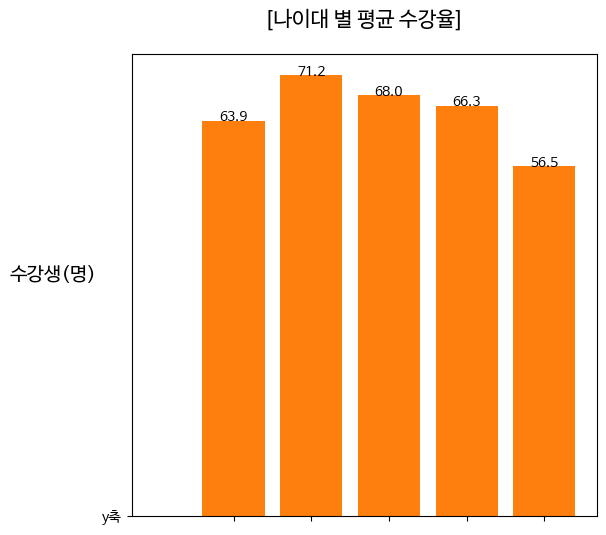
5) 연령대별 평균
average_progress_rate = progress_rate_by_age / number_people_by_age
average_progress_rate
0age1020304050
63.920575
71.243020
68.016611
66.338792
56.527652
dtype: float64
6)시각화하기
#그래프의 높이와 넓이 설정
plt.figure(figsize = ( 6 , 6 ))
#그래프의 x축 눈금 설정
plt.xticks([ 10 , 20 , 30 , 40 , 50 ])
#그래프의 x축, y축 값
plt.bar( "x축" , "y축" )
#그래프의 바에 각 수치율을 추가
bar = plt.bar(average_progress_rate.index, average_progress_rate, width = 8.0 )
for rect in bar:
height = rect.get_height()
plt.text(rect.get_x() + rect.get_width()/ 2.0 , height, '%.1f' % height, ha = 'center' )
#그래프 제목
plt.title( '[나이대 별 평균 수강율]' , fontsize = 15 , pad = 20 )
#그래프의 y축 라벨 이름
plt.ylabel( '수강생(명)' , fontsize = 14 , rotation = 360 , labelpad = 35 )
#그래프를 나타내 주세요!
plt.show()
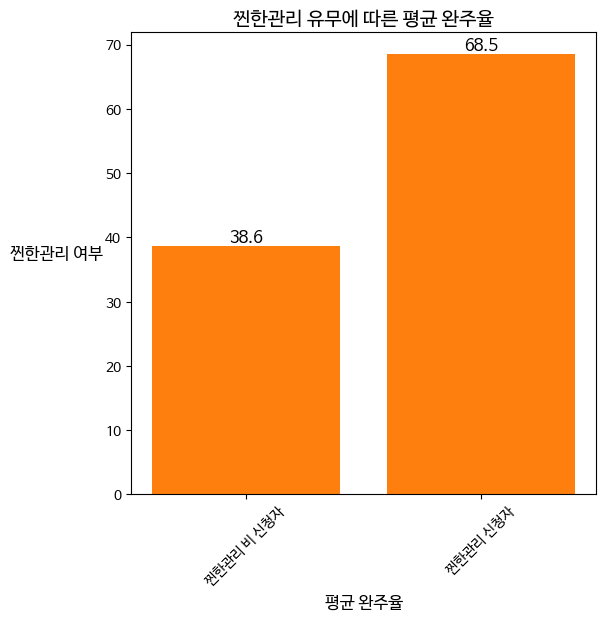
7) 관리 여부에 따른 수강 완료율 평균 구하기
import pandas as pd #판다스 사용 선언
import seaborn as sns #씨본 사용 선언
import matplotlib.pyplot as plt #맷플로립 사용 선언
plt.rc( 'font' , family= 'NanumBarungothic' ) # 한글 깨짐 방지
sparta_data=pd.read_csv( '/content/sparta_data.csv' )
sparta_data.head()
managed = [ 'True' , 'False' ]
managed
#관리 여부에 따른 수강완료율 평균 구하기
managed_data_avg = sparta_data.groupby( 'managed' )[ 'progress_rate' ]. sum ()/sparta_data.groupby( 'managed' )[ '_id' ].count()
managed_data_avg
#plt.figure(width, height) : 넓이와 높이 만큼 이미지를 생성한다는 것을 말해줍니다!
plt.figure(figsize=( 6 , 6 ))
#각각 어떤 값이 들어가야 하는지 입력해 볼까요?
#plt.bar(X축값, Y축값)
plt.bar(managed_data_avg.index ,managed_data_avg)
#그래프의 바에 각 수치율을 추가 해 볼까요?
bar = plt.bar(managed_data_avg.index ,managed_data_avg)
for rect in bar:
height = rect.get_height()
plt.text(rect.get_x() + rect.get_width()/ 2.0 , height, '%.1f' % height, ha= 'center' , va= 'bottom' , size = 12 )
#그래프의 제목
plt.title( '찐한관리 유무에 따른 평균 완주율' ,fontsize= 14 )
#그래프의 x축 라벨 이름
plt.xlabel( '평균 완주율' ,fontsize= 12 )
#x축 눈금 레이블 지정하기
#기존의 0,1이라는 x축 레이블을, labels =["..."]로 변경 가능 합니다 :)
plt.xticks([ 0 , 1 ], labels=[ "찐한관리 비 신청자" , "찐한관리 신청자" ])
#그래프의 y축 라벨 이름
plt.ylabel( '찐한관리 여부' ,fontsize= 12 ,rotation= 360 ,labelpad= 35 )
#x축 눈금의 글씨를 45도 회전
plt.xticks(rotation= 45 )
#y축 눈금의 글씨를 360도 회전
plt.yticks(rotation= 360 )
#그래프를 화면에 나타나도록 합니다.
plt.show()
8) 코호트 분석
#코호트 분석
import pandas as pd
import seaborn as sns
import matplotlib.pyplot as plt
plt.rc( 'font' , family = 'NanumBarunGothic' )
sparta_data = pd.read_table( '/content/cohort_data.csv' , sep= ',' )
sparta_data.info() # 불러온 문서 정보
sparta_data.head()
format = "%Y. %m. %d"
sparta_data[ 'start_time' ] = pd.to_datetime(sparta_data[ 'created_at' ], format= 'mixed' )
sparta_data.tail()
#수강 시작 주 구하고, 테이블의 열로 추가 하기
sparta_data[ 'start_week' ]= sparta_data[ 'start_time' ].dt.isocalendar().week
sparta_data.tail()
#이전에 배웠듯이 set()은 set안의 데이터는 순서가 정해져있지 않고, 중복되지 않는 고유한 요소를 가져옵니다!
category_range = set (sparta_data[ 'start_week' ])
category_range
progress_rate = list (sparta_data[ 'progress_rate' ])
#범주를 구분하는 기준 bins 처음(0)과 끝(100) 잊지 말고 기입 해주세요!
bins = [ 0 , 4.11 , 26.03 , 41.10 , 61.64 , 80.82 , 100 ]
#구분한 범주의 라벨 labels
labels=[ 0 , 1 , 2 , 3 , 4 , 5 ]
#범주화에 사용하는 함수 pd.cut
cuts = pd.cut(progress_rate,bins, right= True ,include_lowest= True , labels=labels)
cuts
#결과물을 테이블로 변경하기
cuts = pd.DataFrame(cuts)
cuts.tail()
#concat() 함수를 이용하여, sparta_data 테이블과, cuts 테이블 병합 할수 있습니다 :)
sparta_data = pd.concat([sparta_data,cuts],axis= 1 , join= 'inner' )
sparta_data.head()
# sparta_data.columns[6]="weeks"
#6번째의 컬럼의 이름만 "weeks" 변경 해주면 되겠죠?
#하지만 이렇게 작성하면 오류가 발생 할꺼예요!
#그래서, 귀찮더라도, 우리가 원하는 컬럼의 이름을 다 작성해 줍시다!
sparta_data.columns=[ 'created_at' , 'user_id' , 'name' , 'progress_rate' , 'start_time' , 'start_week' , "week" ]
sparta_data.head()
#기존의 테이블을, start_week와, week로 묶어줍니다!
grouping = sparta_data.groupby([ 'start_week' , 'week' ])
grouping.head()
#내부적으로는 start_week와 week로 그룹핑이 된 상태임
cohort_data = grouping[ 'user_id' ].apply(pd.Series.nunique)
cohort_data = pd.DataFrame(cohort_data)
#첫 주가 31주니 변수를 하나 만들어 줍니다!
f= 31
#처음 수강 시작한 주의 범위가 {31,32,33,34,35,36} 이니, range(6)으로 합시다!
for i in range ( 6 ):
#5주차의 강의가 마지막이고, 0주차까지 이니, 시작은 5에서 시작해 1씩 0까지 감소 시킬수 있어요!
for j in range ( 5 , 0 , -1 ):
cohort_data.at[(f,j -1 ), 'user_id' ] = int (cohort_data.at[(f,j), 'user_id' ]) + int (cohort_data.at[(f,j -1 ), 'user_id' ])
#주차는(31부터 32 33..) 1씩 늘어나죠?
f=f+ 1
cohort_data.head()
cohort_data = cohort_data.reset_index()
cohort_data.head( 20 )
<class 'pandas.core.frame.DataFrame'>
RangeIndex: 1736 entries, 0 to 1735
Data columns (total 4 columns):
 #   Column         Non-Null Count  Dtype
---  ------         --------------  -----
 0   created_at     1736 non-null   object
 1   user_id        1736 non-null   object
 2   name           1736 non-null   object
 3   progress_rate  1736 non-null   int64
dtypes: int64(1), object(3)
memory usage: 54.4+ KB
/tmp/ipython-input-2749483683.py:55: FutureWarning: The default of observed=False is deprecated and will be changed to True in a future version of pandas. Pass observed=False to retain current behavior or observed=True to adopt the future default and silence this warning.
  grouping = sparta_data.groupby(['start_week','week'])
start_weekweekuser_id012345678910111213141516171819
31
0
230
31
1
225
31
2
211
31
3
197
31
4
181
31
5
167
32
0
344
32
1
340
32
2
323
32
3
275
32
4
233
32
5
213
33
0
289
33
1
277
33
2
242
33
3
228
33
4
202
33
5
184
34
0
261
34
1
247
9) 피벗테이블
cohort_counts = cohort_data.pivot(index= "start_week" ,
columns= "week" ,
values= "user_id" )
cohort_counts
# 앞서 만든 피벗 테이블을 retention 변수에 저장하기
retention = cohort_counts
#각 주(week) 별 최초 수강생 수만 가져오기 (나눠줄때, 분모가 되는 부분!)
cohort_sizes = cohort_counts.iloc[:, 0 ] #x 축을 첫번째 열만 들고 가고 찢겠다
cohort_sizes.head()
# 표의 단일 데이터에 최초 수강생의 수를 나누어, 각 주당 수강생 수강율 나타내기!
retention = cohort_counts.divide(cohort_sizes, axis= 0 )
retention.head()
#각 수치 퍼센트로 변경하기
#round 함수로 3자리 수에서 반올림 한 후, 100을 곱해 줍니다!
retention. round ( 3 )* 100
#테이블 크기 설정 하기
plt.figure(figsize=( 10 , 8 ))
sns.heatmap(data=retention,
annot= True ,
fmt= '.2%' ,
vmin= 0 ,
vmax= 1 ,
cmap= "BuGn" )
plt.xlabel( '주차' , fontsize= 14 ,labelpad= 30 )
plt.ylabel( '개강일' , fontsize= 14 ,rotation= 360 ,labelpad= 30 )
plt.yticks(rotation= 360 )
plt.show()